



上一篇文章中我们了解了为元素设置背景图像的方法,请看《css如何为元素设置背景图像》。这次我们来了解一下使用background-origin属性定位元素背景图像的方法,有需要的可以参考参考。
在上一篇文章中我们有提到background-origin这个属性,但是小编没有说,这次就来说说这个属性。
我们来看一个小例子。
  <style>
    div{
      background-image: url("images/2.jpg");
      background-repeat:no-repeat;
      background-position:left;
      background-origin:content-box;
      width: 600px;
      height: 400px;
      border: 2px solid red;
    }
  </style>
</head>
<body><div>
<p>为了显示,表明这个一个p元素</p><p><span>立即学习</span>“<a href="https://pan.quark.cn/s/cb6835dc7db1" style="text-decoration: underline !important; color: blue; font-weight: bolder;" rel="nofollow" target="_blank">前端免费学习笔记(深入)</a>”;</p><div class="aritcle_card flexRow">
                                                        <div class="artcardd flexRow">
                                                                <a class="aritcle_card_img" href="/ai/867" title="Rezi.ai"><img
                                                                                src="https://img.php.cn/upload/ai_manual/001/503/042/68b6d60644bb7461.png" alt="Rezi.ai"  onerror="this.onerror='';this.src='/static/lhimages/moren/morentu.png'" ></a>
                                                                <div class="aritcle_card_info flexColumn">
                                                                        <a href="/ai/867" title="Rezi.ai">Rezi.ai</a>
                                                                        <p>一个使用 AI 自动化创建简历平台</p>
                                                                </div>
                                                                <a href="/ai/867" title="Rezi.ai" class="aritcle_card_btn flexRow flexcenter"><b></b><span>下载</span> </a>
                                                        </div>
                                                </div>
<p>为了显示,表明这个一个p元素</p><p><span>立即学习</span>“<a href="https://pan.quark.cn/s/cb6835dc7db1" style="text-decoration: underline !important; color: blue; font-weight: bolder;" rel="nofollow" target="_blank">前端免费学习笔记(深入)</a>”;</p>
<p>为了显示,表明这个一个p元素</p><p><span>立即学习</span>“<a href="https://pan.quark.cn/s/cb6835dc7db1" style="text-decoration: underline !important; color: blue; font-weight: bolder;" rel="nofollow" target="_blank">前端免费学习笔记(深入)</a>”;</p>
<p>为了显示,表明这个一个p元素</p><p><span>立即学习</span>“<a href="https://pan.quark.cn/s/cb6835dc7db1" style="text-decoration: underline !important; color: blue; font-weight: bolder;" rel="nofollow" target="_blank">前端免费学习笔记(深入)</a>”;</p>
<p>为了显示,表明这个一个p元素</p><p><span>立即学习</span>“<a href="https://pan.quark.cn/s/cb6835dc7db1" style="text-decoration: underline !important; color: blue; font-weight: bolder;" rel="nofollow" target="_blank">前端免费学习笔记(深入)</a>”;</p>
<p>为了显示,表明这个一个p元素</p><p><span>立即学习</span>“<a href="https://pan.quark.cn/s/cb6835dc7db1" style="text-decoration: underline !important; color: blue; font-weight: bolder;" rel="nofollow" target="_blank">前端免费学习笔记(深入)</a>”;</p>
<p>为了显示,表明这个一个p元素</p><p><span>立即学习</span>“<a href="https://pan.quark.cn/s/cb6835dc7db1" style="text-decoration: underline !important; color: blue; font-weight: bolder;" rel="nofollow" target="_blank">前端免费学习笔记(深入)</a>”;</p>
<p>为了显示,表明这个一个p元素</p><p><span>立即学习</span>“<a href="https://pan.quark.cn/s/cb6835dc7db1" style="text-decoration: underline !important; color: blue; font-weight: bolder;" rel="nofollow" target="_blank">前端免费学习笔记(深入)</a>”;</p>
<p>为了显示,表明这个一个p元素</p><p><span>立即学习</span>“<a href="https://pan.quark.cn/s/cb6835dc7db1" style="text-decoration: underline !important; color: blue; font-weight: bolder;" rel="nofollow" target="_blank">前端免费学习笔记(深入)</a>”;</p>
<p>为了显示,表明这个一个p元素</p><p><span>立即学习</span>“<a href="https://pan.quark.cn/s/cb6835dc7db1" style="text-decoration: underline !important; color: blue; font-weight: bolder;" rel="nofollow" target="_blank">前端免费学习笔记(深入)</a>”;</p>
<p>为了显示,表明这个一个p元素</p><p><span>立即学习</span>“<a href="https://pan.quark.cn/s/cb6835dc7db1" style="text-decoration: underline !important; color: blue; font-weight: bolder;" rel="nofollow" target="_blank">前端免费学习笔记(深入)</a>”;</p>
<p>为了显示,表明这个一个p元素</p><p><span>立即学习</span>“<a href="https://pan.quark.cn/s/cb6835dc7db1" style="text-decoration: underline !important; color: blue; font-weight: bolder;" rel="nofollow" target="_blank">前端免费学习笔记(深入)</a>”;</p>
<p>为了显示,表明这个一个p元素</p><p><span>立即学习</span>“<a href="https://pan.quark.cn/s/cb6835dc7db1" style="text-decoration: underline !important; color: blue; font-weight: bolder;" rel="nofollow" target="_blank">前端免费学习笔记(深入)</a>”;</p>
<p>为了显示,表明这个一个p元素</p><p><span>立即学习</span>“<a href="https://pan.quark.cn/s/cb6835dc7db1" style="text-decoration: underline !important; color: blue; font-weight: bolder;" rel="nofollow" target="_blank">前端免费学习笔记(深入)</a>”;</p>
</div>
</body>
这个小例子的结果是
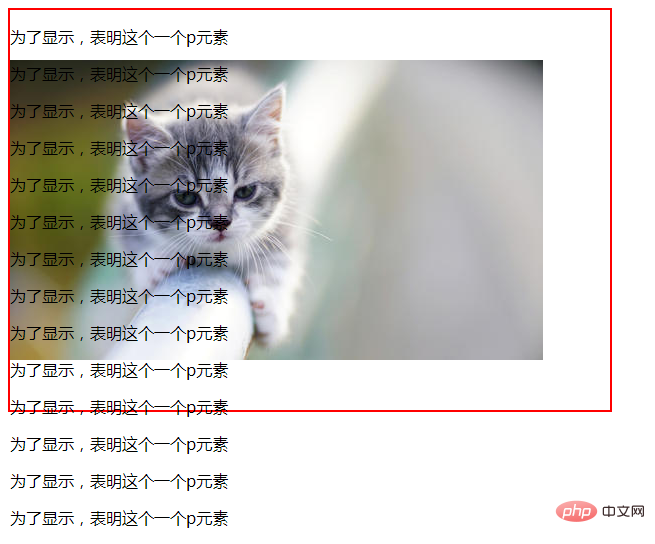
我们看一下这个效果,为了方便观察,我将元素的大小用边框线给标注出来了,红色的那个就是div元素的边框线。奇怪的事情发生了呢,为什么我的背景图没有在左上方显示,而是往下移动了呢?原来是因为使用了background-origin这个属性啊。
我们来看看这个属性吧。
background-origin规定了指定背景图片background-image属性的原点位置的背景相对区域。这个属性也规定background-position 属性相对于什么位置来定位。
需要注意的是:
如果背景图像的background-attachment属性为 "fixed",则该属性没有效果。
看看这个属性的语法吧。
background-origin: padding-box|border-box|content-box;
其中padding-box代表的是背景图像相对于内边距框来定位;border-box代表的是背景图像相对于边框盒来定位;content-box代表的是背景图像相对于内容框来定位。
推荐学习:css视频教程




