



现在如果想打造一款专业的app,ui的设计和操作的简便性相当重要。ui设计可以借助photoshop或者ai等设计工具,之前了解到wpf设计工具expression blend可以直接导入psd文件或者ai设计文件(当然不是全部特征支持),最近研究了一下,也费了一番周折,好在最后实现了预期的效果。下面将step by step用示例说明如何先用ps构建一个矢量图形模板,然后用expression blend导入psd文件,并获取path的data值,为打造一款炫酷的个性进度条控件构建美观ui。
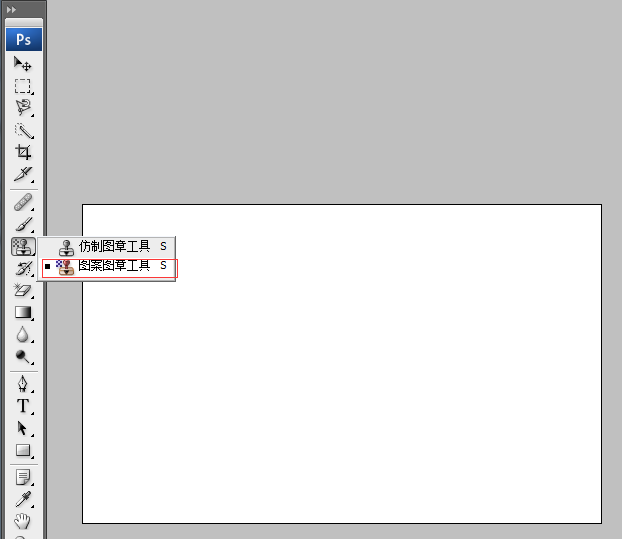
1、打开Photoshop,新建一个空白图层,点选PS的图案图章工具:
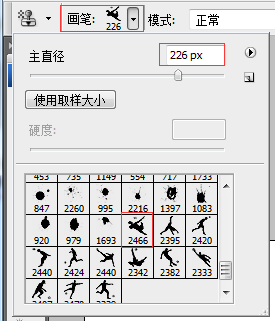
2、选择画笔,选用喜欢的笔刷(可以到网站上下载免费的笔刷),如下图:
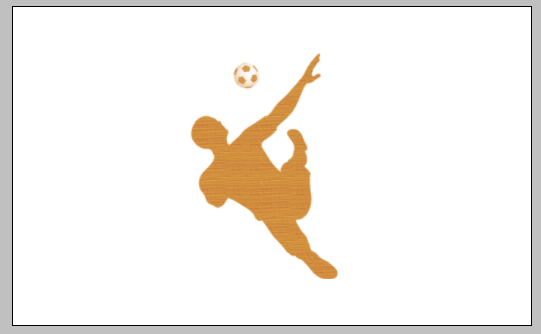
在合适位置点击后,如下图所示。
3、按住CTRL,选中图层,切换到路径面板,点击 【从选取创建工作路径】 按钮,如下图:
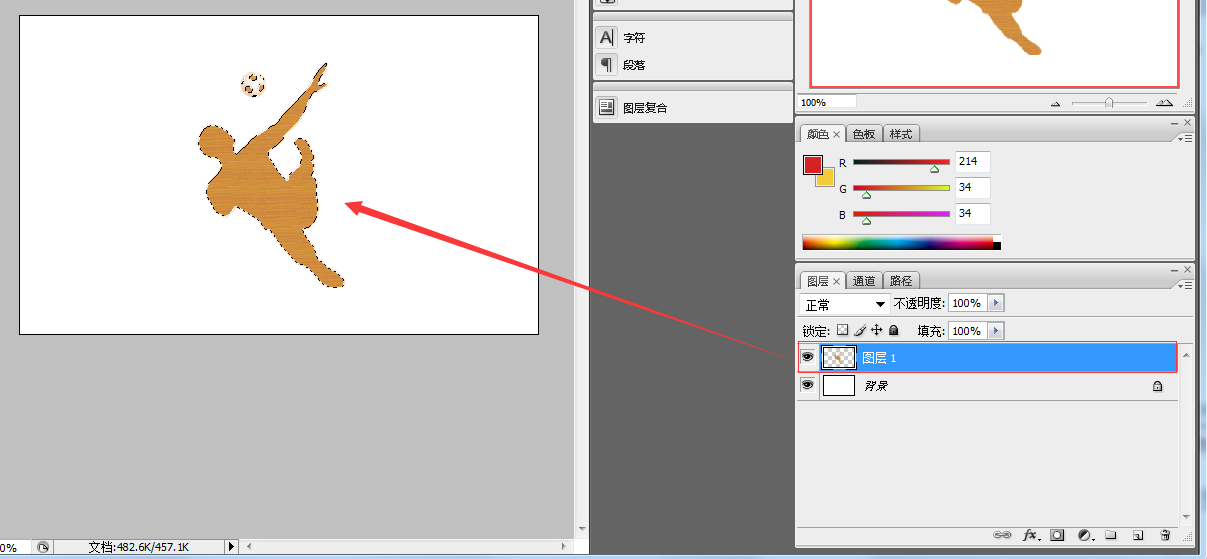
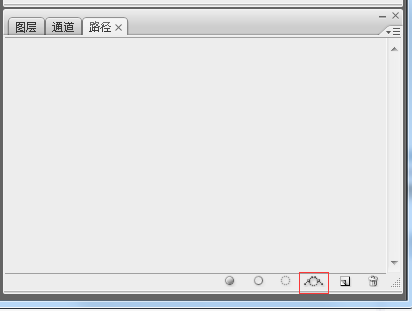
注意上图的红框按钮,就是【从选取创建工作路径】,点击后出现下图:
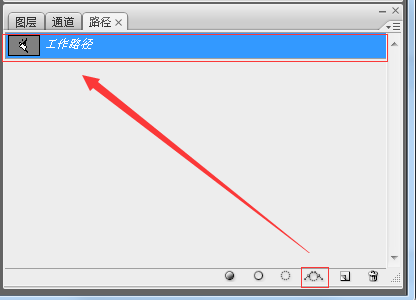
4、这是最关键的一步,创建矢量蒙板,切换到图层面板,点选【钢笔】工具,在图形上右键菜单中选择【创建矢量蒙板】项,如下图所示:
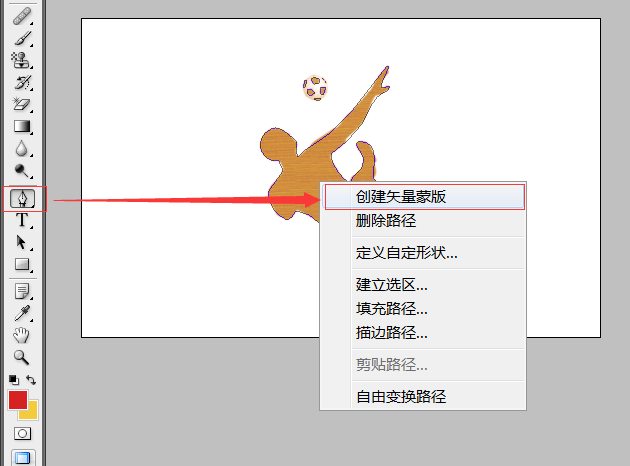
然后PS中可以看到下图的效果,说明创建成功。
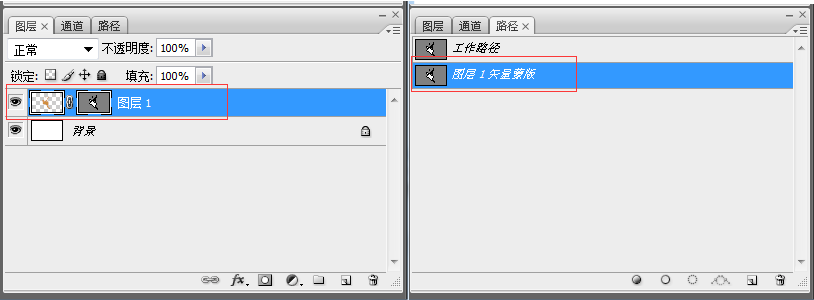
保存PS文件为进度条.PSD文件待用。

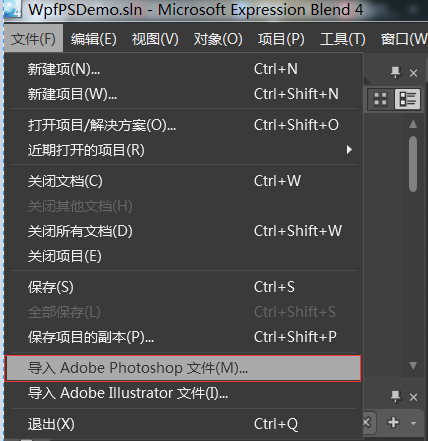
5、打开Expression Blend 4新建一个WPF项目,然后导入PSD文件,如下图:
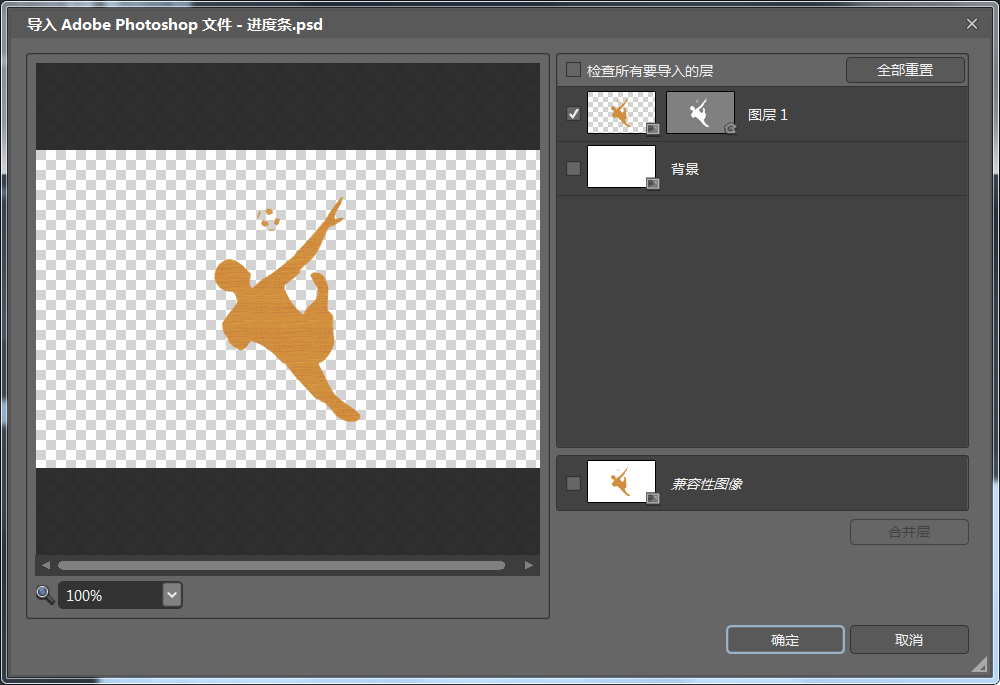
导入成功后,可以复制该图形的clip数据,这就是WPF中PATH所需要的Data值。
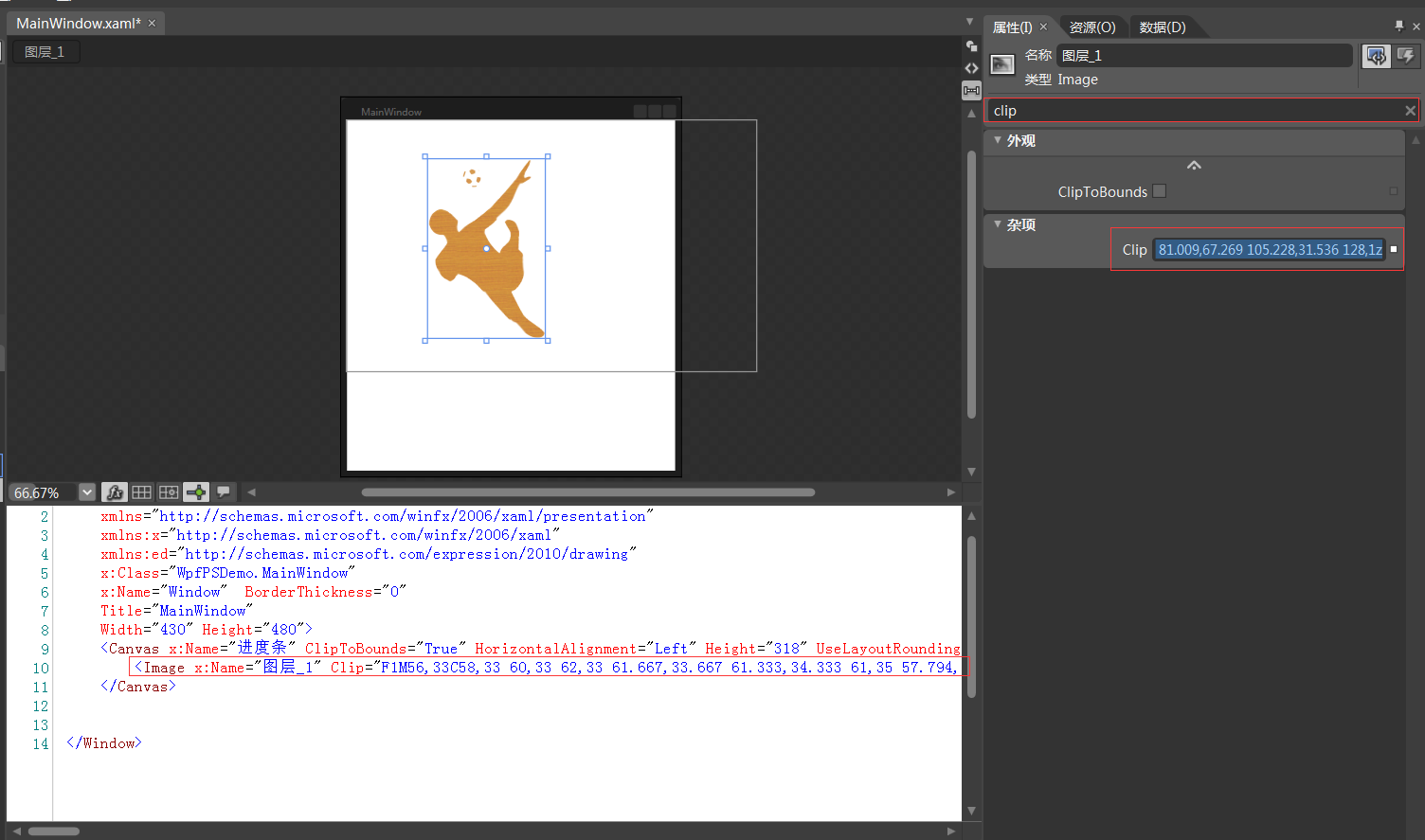
下面来创建一个炫酷的WPF进度条控件。
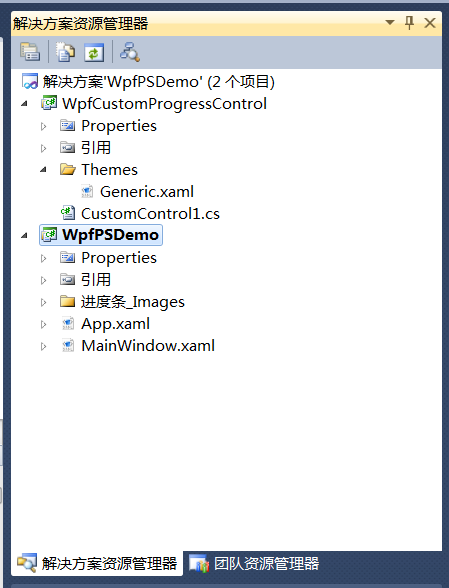
6、在VS2010中重新打开该项目,并添加一个WPF自定义控件库,如下图:
17 编写控件UI和后台代码,如下所示:
<ResourceDictionary
    xmlns="http://schemas.microsoft.com/winfx/2006/xaml/presentation"
    xmlns:x="http://schemas.microsoft.com/winfx/2006/xaml"
    xmlns:local="clr-namespace:WpfCustomProgressControl">

    <Style TargetType="{x:Type local:CustomProgressControl}">
        <Setter Property="Template">
            <Setter.Value>
                <ControlTemplate TargetType="{x:Type local:CustomProgressControl}">
                    <Grid x:Name="PART_container"
                          Background="{TemplateBinding Background}"
                          Width="{TemplateBinding Width}"
                          Height="{TemplateBinding Height}">
                        <Path x:Name="PART_foreground_P"
                              Visibility="Collapsed"
                              Stretch="Fill"
                              Stroke="Transparent"
                              Fill="{TemplateBinding Foreground}"
                              StrokeThickness="2"
                              Data="F1M56,33C58,33 60,33 62,33 61.667,33.667 61.333,34.333 61,35 57.794,34.859 53.856,36.079 56,33z M49,24C54.364,24.735 53.554,24.821 56,28 53.807,30.696 55.287,29.902 51,31 50,30 49,29 48,28 48.333,26.667 48.667,25.333 49,24z M62,22C63.666,22.333 65.333,22.667 67,23 66.333,27.571 65.935,27.376 64,30 63,29.333 62,28.667 61,28 61,27.667 61,27.333 61,27 61.333,25.333 61.667,23.666 62,22z M46,15C46.667,15 47.333,15 48,15 47.333,17.333 46.667,19.667 46,22 45.333,22 44.667,22 44,22 44.667,19.667 45.333,17.333 46,15z M63,13C64.923,14.392 63.599,13.101 65,15 64.333,14.333 63.667,13.667 63,13z M55,12C56.666,12.667 58.333,13.333 60,14 60,15.333 60,16.667 60,18 59.333,18 58.667,18 58,18 54.722,21.928 52.838,16.561 52,14 53,13.333 54,12.667 55,12z M128,1C128.667,1 129.333,1 130,1 128.882,10.058 122.793,12.326 122,23 126.364,22.028 126.876,21.206 131,22 130,23.333 129,24.667 128,26 110.659,32.752 112.704,45.252 103,59 95.769,69.245 82.761,82.131 72,89 72.621,101.092 82.373,112.463 90,118 90.333,118 90.667,118 91,118 93.274,107.421 107.464,106.386 104,92 101.667,87.667 99.333,83.333 97,79 98,78 99,77 100,76 122.812,77.152 112.786,100.488 115,114 116.666,115.666 118.333,117.333 120,119 127.359,142.373 118.776,160.626 106,168 110.337,176.877 114.918,188.188 121,197 127.441,206.332 140.794,210.508 148,220 146.506,223.067 146.885,223.215 144,225 113.08,236.802 62.376,138.34 36,147 34.077,151.751 32.347,152.761 28,155 17.556,150.255 9.333,141.565 9,127 13.999,120.001 19,112.999 24,106 22.667,102.667 21.333,99.333 20,96 7.555,96.019 4.392,90.889 1,82 1.465,74.486 3.768,68.82 9,66 19.848,56.341 31.922,71.946 38,77 37.406,83.299 36.792,87.413 39,92 41.333,89.667 43.667,87.333 46,85 81.009,67.269 105.228,31.536 128,1z" />

                        <Rectangle x:Name="PART_mask"
                                   Fill="{TemplateBinding Background}"
                                   VerticalAlignment="Stretch"
                                   HorizontalAlignment="Stretch" />

                        <Path x:Name="PART_outline_P"
                              Visibility="Collapsed"
                              Stretch="Fill"
                              Stroke="{TemplateBinding BorderBrush}"
                              Fill="Transparent"
                              StrokeThickness="2"
                              Data="F1M56,33C58,33 60,33 62,33 61.667,33.667 61.333,34.333 61,35 57.794,34.859 53.856,36.079 56,33z M49,24C54.364,24.735 53.554,24.821 56,28 53.807,30.696 55.287,29.902 51,31 50,30 49,29 48,28 48.333,26.667 48.667,25.333 49,24z M62,22C63.666,22.333 65.333,22.667 67,23 66.333,27.571 65.935,27.376 64,30 63,29.333 62,28.667 61,28 61,27.667 61,27.333 61,27 61.333,25.333 61.667,23.666 62,22z M46,15C46.667,15 47.333,15 48,15 47.333,17.333 46.667,19.667 46,22 45.333,22 44.667,22 44,22 44.667,19.667 45.333,17.333 46,15z M63,13C64.923,14.392 63.599,13.101 65,15 64.333,14.333 63.667,13.667 63,13z M55,12C56.666,12.667 58.333,13.333 60,14 60,15.333 60,16.667 60,18 59.333,18 58.667,18 58,18 54.722,21.928 52.838,16.561 52,14 53,13.333 54,12.667 55,12z M128,1C128.667,1 129.333,1 130,1 128.882,10.058 122.793,12.326 122,23 126.364,22.028 126.876,21.206 131,22 130,23.333 129,24.667 128,26 110.659,32.752 112.704,45.252 103,59 95.769,69.245 82.761,82.131 72,89 72.621,101.092 82.373,112.463 90,118 90.333,118 90.667,118 91,118 93.274,107.421 107.464,106.386 104,92 101.667,87.667 99.333,83.333 97,79 98,78 99,77 100,76 122.812,77.152 112.786,100.488 115,114 116.666,115.666 118.333,117.333 120,119 127.359,142.373 118.776,160.626 106,168 110.337,176.877 114.918,188.188 121,197 127.441,206.332 140.794,210.508 148,220 146.506,223.067 146.885,223.215 144,225 113.08,236.802 62.376,138.34 36,147 34.077,151.751 32.347,152.761 28,155 17.556,150.255 9.333,141.565 9,127 13.999,120.001 19,112.999 24,106 22.667,102.667 21.333,99.333 20,96 7.555,96.019 4.392,90.889 1,82 1.465,74.486 3.768,68.82 9,66 19.848,56.341 31.922,71.946 38,77 37.406,83.299 36.792,87.413 39,92 41.333,89.667 43.667,87.333 46,85 81.009,67.269 105.228,31.536 128,1z" />

                        <TextBlock x:Name="PART_percentage_text"
                                   VerticalAlignment="Center"
                                   HorizontalAlignment="Center"
                                   FontSize="16"
                                   FontWeight="ExtraBlack"
                                   Foreground="{TemplateBinding TextForeground}"/>

                    </Grid>
                </ControlTemplate>
            </Setter.Value>
        </Setter>
    </Style>

</ResourceDictionary>
using System;
using System.Collections.Generic;
using System.Linq;
using System.Text;
using System.Windows;
using System.Windows.Controls;
using System.Windows.Data;
using System.Windows.Documents;
using System.Windows.Input;
using System.Windows.Media;
using System.Windows.Media.Imaging;
using System.Windows.Navigation;
using System.Windows.Shapes;
namespace WpfCustomProgressControl
{
[TemplatePart(Name = "PART_mask", Type = typeof(Rectangle))]
[TemplatePart(Name = "PART_container", Type = typeof(Grid))]
[TemplatePart(Name = "PART_percentage_text", Type = typeof(TextBlock))]
[TemplatePart(Name = "PART_foreground_P", Type = typeof(Path))]
[TemplatePart(Name = "PART_outline_P", Type = typeof(Path))]
public class CustomProgressControl : ProgressBar
{
static CustomProgressControl()
{
DefaultStyleKeyProperty.OverrideMetadata(typeof(CustomProgressControl), new FrameworkPropertyMetadata(typeof(CustomProgressControl)));
}
Rectangle mask;
Grid container;
TextBlock percentageText;
Path foreground_P;
Path outline_P;
#region TextForeground 文本
public SolidColorBrush TextForeground
{
get { return (SolidColorBrush)GetValue(TextForegroundProperty); }
set { SetValue(TextForegroundProperty, value); }
}
public static readonly DependencyProperty TextForegroundProperty =
DependencyProperty.Register("TextForeground", typeof(SolidColorBrush),
typeof(CustomProgressControl),
new FrameworkPropertyMetadata(new SolidColorBrush(Colors.DarkGray)));
#endregion
public override void OnApplyTemplate()
{
base.OnApplyTemplate();
foreground_P = this.Template.FindName("PART_foreground_P", this) as Path;
outline_P = this.Template.FindName("PART_outline_P", this) as Path;
mask = this.Template.FindName("PART_mask", this) as Rectangle;
container = this.Template.FindName("PART_container", this) as Grid;
percentageText = this.Template.FindName("PART_percentage_text", this) as TextBlock;
if (foreground_P != null)
{
foreground_P.Visibility = Visibility.Visible;
outline_P.Visibility = Visibility.Visible;
}
Width = double.IsNaN(Width) ? 50 : Width;
Height = double.IsNaN(Height) ? 135 : Height;
Minimum = double.IsNaN(Minimum) ? 0 : Minimum;
Maximum = double.IsNaN(Maximum) ? 100 : Maximum;
if (mask != null)
{
var percentageValue = Value / Maximum;
var awayMargin = percentageValue * Height;
var percentageString = string.Empty;
if (percentageValue > 0)
percentageString = (percentageValue * 100).ToString("##");
else if (percentageValue == 0)
percentageString = "0";
percentageText.Text = string.Format("{0}%", string.IsNullOrEmpty(percentageString) ? "0" : percentageString);
mask.Margin = new Thickness(0, 0, 0, awayMargin);
}
container.Clip = new RectangleGeometry
{
Rect = new Rect(0, 0, Width, Height)
};
mask.Width = Width;
mask.Height = Height;
}
protected override void OnValueChanged(double oldValue, double newValue)
{
base.OnValueChanged(oldValue, newValue);
if (Value < Minimum)
{
Value = Minimum;
}
if (Value > Maximum)
{
Value = Maximum;
}
if (mask != null)
{
var percentageValue = Value / Maximum;
var awayMargin = percentageValue * Height;
var percentageString = string.Empty;
if (percentageValue > 0)
percentageString = (percentageValue * 100).ToString("##");
else if (percentageValue == 0)
percentageString = "0";
percentageText.Text = string.Format("{0}%", string.IsNullOrEmpty(percentageString) ? "0" : percentageString);
//蒙板来变更进度
mask.Margin = new Thickness(0, 0, 0, awayMargin);
}
}
}
}18 在WpfPSDemo的主界面上拖入控件,并定制属性,代码如下:
 <Window
    xmlns="http://schemas.microsoft.com/winfx/2006/xaml/presentation"
    xmlns:x="http://schemas.microsoft.com/winfx/2006/xaml"
    xmlns:ed="http://schemas.microsoft.com/expression/2010/drawing"
    x:Class="WpfPSDemo.MainWindow"
    x:Name="Window"  BorderThickness="0"
    Title="MainWindow"
    Width="430" Height="480" xmlns:my="clr-namespace:WpfCustomProgressControl;assembly=WpfCustomProgressControl">
    <my:CustomProgressControl  Name="customProgressControl1" Width="200" Height="200" Value="50" Background="Yellow" Foreground="Red" BorderBrush="red" />
</Window>
using System;
using System.Collections.Generic;
using System.Text;
using System.Windows;
using System.Windows.Controls;
using System.Windows.Data;
using System.Windows.Documents;
using System.Windows.Input;
using System.Windows.Media;
using System.Windows.Media.Imaging;
using System.Windows.Shapes;
using System.Threading;
namespace WpfPSDemo
{
/// <summary>
/// MainWindow.xaml 的交互逻辑
/// </summary>
public partial class MainWindow : Window
{
Thread timeThread;
int i = 0;
public MainWindow()
{
this.InitializeComponent();
this.customProgressControl1.Value = 0;
this.Background = Brushes.Yellow;
timeThread = new Thread(new ThreadStart(DispatcherThread));
timeThread.Start();
}
public void DispatcherThread()
{
//可以通过循环条件来控制UI的更新
while (true)
{
///线程方法委托(无参方法)
this.customProgressControl1.Dispatcher.BeginInvoke(new Action(UpdateTime));
Thread.Sleep(200);
}
}
private void UpdateTime()
{
if (i < 100)
{
i++;
this.customProgressControl1.Value = i;
}
else
{
timeThread.Abort();
}
}
}
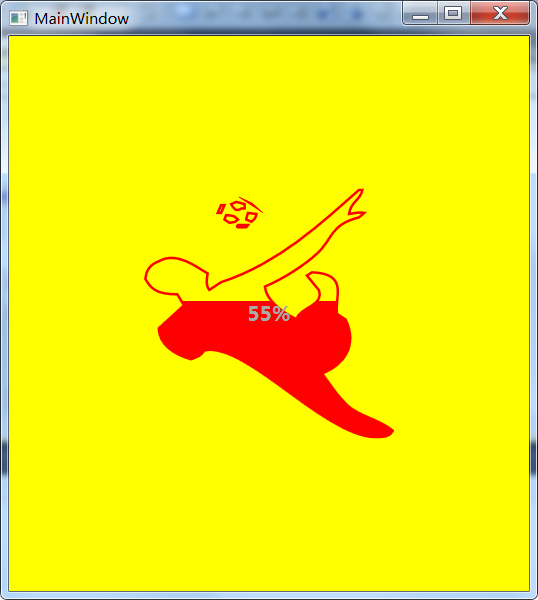
}运行代码,效果如下:
更多Photoshop和WPF双剑配合,打造炫酷个性的进度条控件相关文章请关注PHP中文网!




