
在.net框架中获取图片宽高有多种方法,本文将详细介绍四种方法,并对其性能进行评估。如果您需要处理大量图片,这些信息将非常有用。
本文将评估以下四种方法来获取图片的宽高:
-
System.Drawing.Imaging.Metafile
- 不要误以为
Metafile是图片的元数据,它实际上是微软Windows系统的一种图片格式,如WMF和EMF(Windows Metafile和Enhanced Metafile)。虽然它可以读取其他格式的图片,但不适合通过读取元数据头来提升性能。
var header = Metafile.FromFile(@"D:\blog.walterlv.com\large-background-image.jpg");
var witdh = header.Width;
var height = header.Height;
- 不要误以为
-
System.Drawing.Bitmap
- 这是封装的GDI+位图,GDI+在静态图片上的性能不错,但相比现代框架略逊一筹。
var bitmap = new Bitmap(@"D:\blog.walterlv.com\large-background-image.jpg");
var witdh = bitmap.Width;
var height = bitmap.Height;
-
System.Windows.Media.Imaging.BitmapImage
- 这是WPF框架中提供的显示位图的方法,生成的图片可以直接被WPF框架显示。
var bitmap = new BitmapImage(new Uri(@"D:\blog.walterlv.com\large-background-image.jpg", UriKind.Absolute));
var witdh = bitmap.Width;
var height = bitmap.Height;
-
System.Windows.Media.Imaging.BitmapDecoder
- 这也是WPF框架中提供的方法,性能比完全加载图片的
BitmapImage要好得多。
var decoder = new JpegBitmapDecoder(new Uri(@"D:\blog.walterlv.com\large-background-image.jpg", UriKind.Absolute), BitmapCreateOptions.DelayCreation, BitmapCacheOption.OnDemand);
var frame = decoder.Frames[0];
var witdh = frame.PixelWidth;
var height = frame.PixelHeight;
- 这也是WPF框架中提供的方法,性能比完全加载图片的
性能对比
为了测试性能,我使用了一张非常大的图片,并对其进行了多次运行。
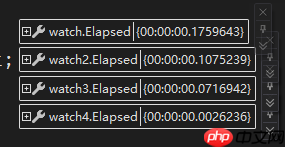
分别运行以上四个方法各10次:

分别运行以上四个方法各100次(可以发现大量的GC):


现在,使用不同的图片运行多次。
分别运行以上四个方法各10张图片:

分别运行以上四个方法各100张图片(可以发现大量的GC):

性能数据
对于同一张图片运行不同次数:
| 消耗时间(ms) | Metafile | Bitmap | BitmapImage | BitmapDecoder |
|---|---|---|---|---|
| 1次 | 175 | 107 | 71 | 2 |
| 10次 | 1041 | 1046 | 63 | 17 |
| 100次 | 10335 | 10360 | 56 | 122 |
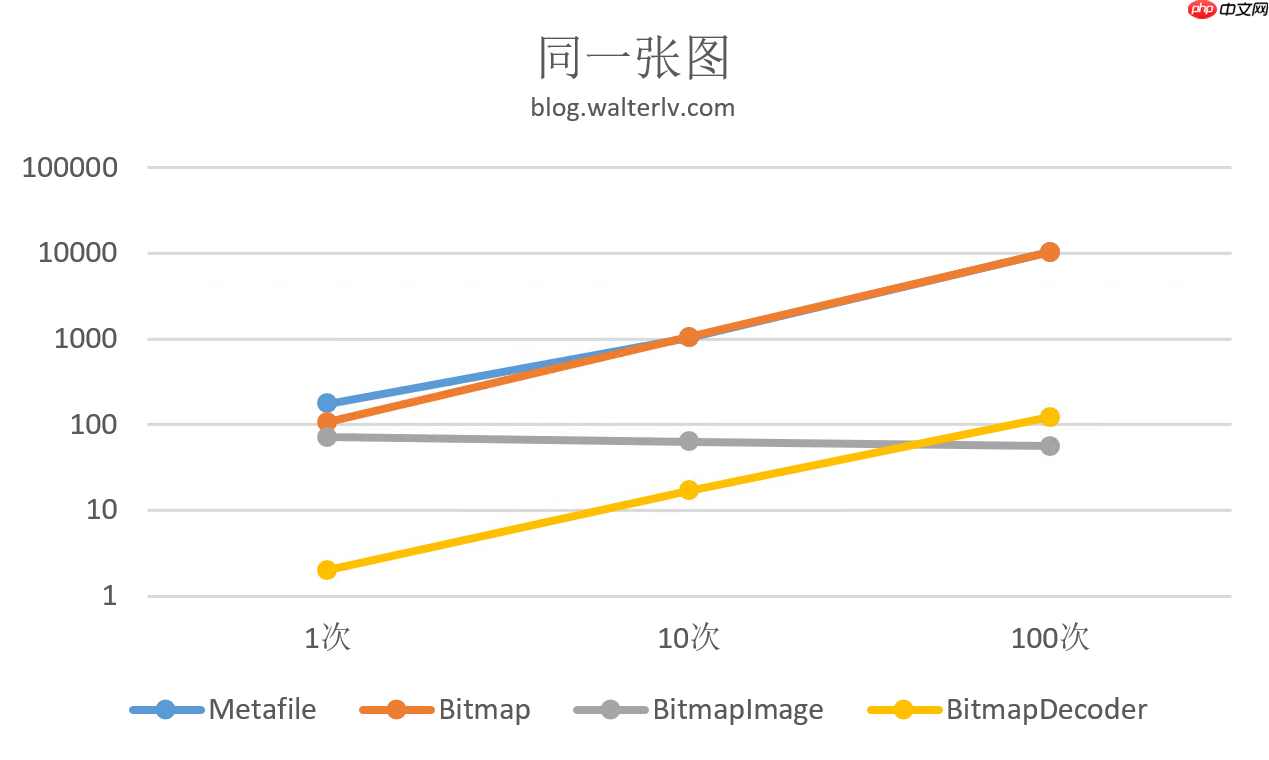
对于不同图片运行不同次数:
| 消耗时间(ms) | Metafile | Bitmap | BitmapImage | BitmapDecoder |
|---|---|---|---|---|
| 1次 | 175 | 107 | 71 | 2 |
| 10次 | 998 | 980 | 83 | 20 |
| 100次 | 10582 | 10617 | 255 | 204 |
| 1000次 | 127023 | 128627 | 3456 | 4015 |
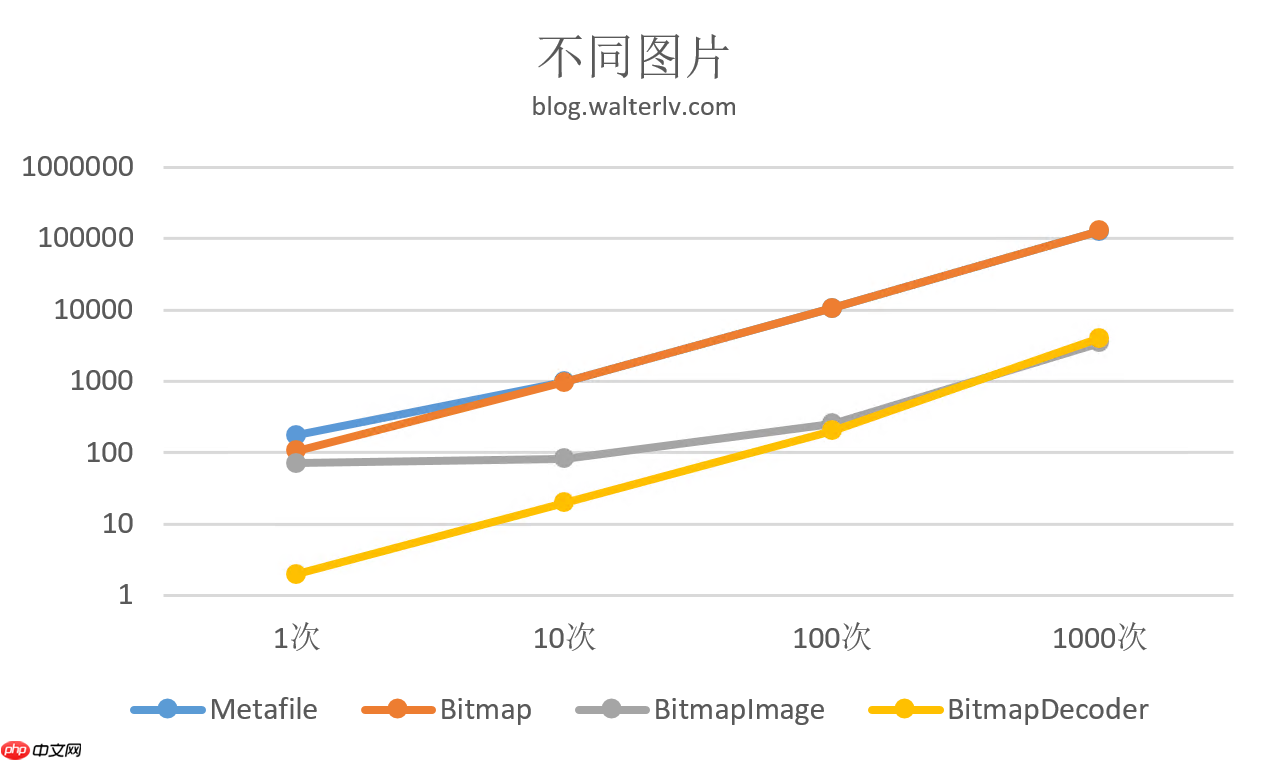
可以发现,对于.NET框架中原生自带的获取图片尺寸的方法来说:
-
System.Windows.Media.Imaging.BitmapDecoder的整体性能是最好的。 - 对于同一张图,
System.Windows.Media.Imaging.BitmapImage的运行时间不随次数的增加而增加,其内部有缓存。