



第一次安装nginx,中间出现的问题一步步解决。
用到的工具securecrt,连接并登录服务器。
1.1 rz命令,会弹出会话框,选择要上传的nginx压缩包。
#rz
1.2 解压
[root@vw010001135067 ~]# cd /usr/local/
[root@vw010001135067 local]# tar -zvxf nginx-1.10.2.tar.gz
1.3 进入nginx文件夹,执行./configure命令
[root@vw010001135067 local]# cd nginx-1.10.2
[root@vw010001135067 nginx-1.10.2]# ./configure
报错如下:
checking for os
 + linux 2.6.32-431.el6.x86_64 x86_64
checking for c compiler ... not found

./configure: error: c compiler cc is not found
出现这个错误。那么就是gcc 包没有安装。
1.3.1 安装gcc
查看gcc
[root@vw010001135067 nginx-1.10.2]# whereis gcc
gcc:
安装gcc
[root@vw010001135067 nginx-1.10.2]# yum -y install gcc
安装成功后再次查看
[root@vw010001135067 nginx-1.10.2]# whereis gcc
gcc: /usr/bin/gcc /usr/lib/gcc /usr/libexec/gcc /usr/share/man/man1/gcc.1.gz
gcc安装好了。
1.3.2 继续执行./configure
[root@vw010001135067 nginx-1.10.2]# ./configure
checking for os
 + linux 2.6.32-431.el6.x86_64 x86_64
checking for c compiler ... found
......
checking for pcre library ... not found
checking for pcre library in /usr/local/ ... not found
checking for pcre library in /usr/include/pcre/ ... not found
checking for pcre library in /usr/pkg/ ... not found
checking for pcre library in /opt/local/ ... not found

./configure: error: the http rewrite module requires the pcre library.
you can either disable the module by using --without-http_rewrite_module
option, or install the pcre library into the system, or build the pcre library
statically from the source with nginx by using --with-pcre=<path> option.
出现如上错误。安装pcre-devel
[root@vw010001135067 nginx-1.10.2]# yum install pcre-devel
1.3.3 再次执行./configure
error: the http gzip module requires the zlib library.
you can either disable the module by using --without-http_gzip_module
option, or install the zlib library into the system, or build the zlib library
statically from the source with nginx by using --with-zlib=<path> option.
如果有这个错误 那么执行
yum install zlib-devel
1.3.4 执行./configure后没有报错
[root@vw010001135067 nginx-1.10.2]# ./configure
checking for os
 + linux 2.6.32-431.el6.x86_64 x86_64
checking for c compiler ... found
 + using gnu c compiler
 + gcc version: 4.4.7 20120313 (red hat 4.4.7-17) (gcc)
.......
configuration summary
 + using system pcre library
 + openssl library is not used
 + md5: using system crypto library
 + sha1: using system crypto library
 + using system zlib library

 nginx path prefix: "/usr/local/nginx"
 nginx binary file: "/usr/local/nginx/sbin/nginx"
 nginx modules path: "/usr/local/nginx/modules"
 nginx configuration prefix: "/usr/local/nginx/conf"
 nginx configuration file: "/usr/local/nginx/conf/nginx.conf"
 nginx pid file: "/usr/local/nginx/logs/nginx.pid"
 nginx error log file: "/usr/local/nginx/logs/error.log"
 nginx http access log file: "/usr/local/nginx/logs/access.log"
 nginx http client request body temporary files: "client_body_temp"
 nginx http proxy temporary files: "proxy_temp"
 nginx http fastcgi temporary files: "fastcgi_temp"
 nginx http uwsgi temporary files: "uwsgi_temp"
 nginx http scgi temporary files: "scgi_temp"
1.4 如果你想使用openssl 功能,sha1 功能。 那么安装openssl ,sha1 吧
[root@vw010001135067 nginx-1.10.2]# yum install openssl openssl-devel
[root@vw010001135067 nginx-1.10.2]# install perl-digest-sha1.x86_64
1.4.1 开启ssl 模块 执行./configure –with-http_ssl_module
[root@vw010001135067 nginx-1.10.2]# ./configure --with-http_ssl_module
1.4.2 启用“server+status”页,执行./configure –with-http_stub_status_module
[root@vw010001135067 nginx-1.10.2]# ./configure --with-http_stub_status_module
上面两个命令同时启动可以
复制代码 代码如下:
[root@vw010001135067 nginx-1.10.2]# ./configure --with-http_stub_status_module --with-http_ssl_module
1.5 上面configure就通过了

SHOPEX简灰服装商城整站源码下载。 安装方法:1.解压上传程序至网站根目录.. 访问:域名/bak.(用户名:admin 密码:123456)2.进入帝国备份王后,配置数据库数据库信息.选择-www.taomoban.net目录.还原数据库.3.修改FTP目录下的config/config.phpphp 数据库连接信息.4.登陆网站后台--清空缓存..5.删除bak文件夹 后台:shopadm
执行make 命令,执行make install 命令
[root@vw010001135067 nginx-1.10.2]# make
[root@vw010001135067 nginx-1.10.2]# make install
至此,nginx 执行成功了
1.6 配置环境变量
在/etc/profile 中加入配置
打开配置文件
[root@vw010001135067 nginx-1.10.2]# vi /etc/profile
在配置文件中加入
#nginx configure
export nginx_home=/usr/local/nginx-1.10.2
export path=$path:$nginx_home/sbin
我开始像上面填写,结果nginx -v的时候查找不到。注意到上面我的nginx_home配置的地址不对。先找到nginx的安装地址
[root@vw010001135067 nginx-1.10.2]# whereis nginx
nginx: /usr/local/nginx
还真是地址写错了,把上面的改成
#nginx configure
export nginx_home=/usr/local/nginx
export path=$path:$nginx_home/sbin
编译完保存退出并执行
[root@vw010001135067 nginx-1.10.2]# source /etc/profile
使配置生效。
1.7 查看nginx版本
[root@vw010001135067 nginx]# nginx -v
nginx version: nginx/1.10.2
整个过程成功了!
二、修改nginx.conf
2.1 启动nginx
我的nginx服务在http://10.1.135.67/,配置成功后,现在启动nginx
[root@vw010001135067 nginx]# cd /usr/local/nginx
[root@vw010001135067 nginx]# nginx -c conf/nginx.conf
启动成功,在浏览器打开http://10.1.135.67/,默认端口号80.
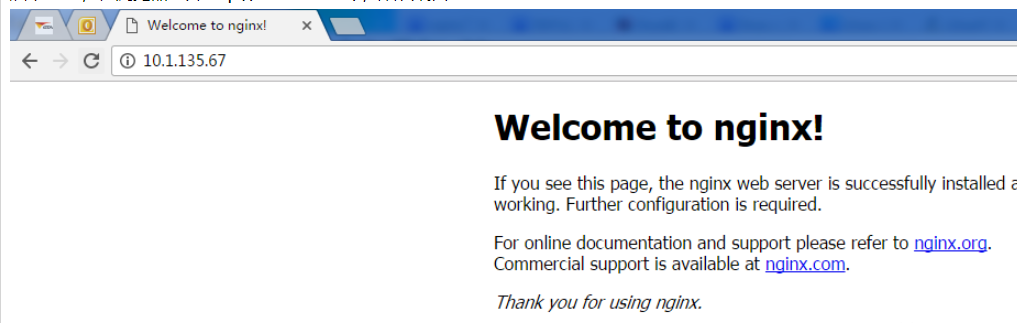
如上图,nginx已经正常工作了。
2.2 配置tomcat服务
现在我的tomcat服务在10.1.29.15,需要通过nginx转发。那么打开nginx.conf,修改配置文件。如下,添加:
#user nobody;
worker_processes 1;

#error_log logs/error.log;
#error_log logs/error.log notice;
#error_log logs/error.log info;

#pid  logs/nginx.pid;


events {
 worker_connections 1024;#最大连接数,默认为512
 accept_mutex on; #设置网路连接序列化,防止惊群现象发生,默认为on
 multi_accept on; #设置一个进程是否同时接受多个网络连接,默认为off
 #use epoll;  #事件驱动模型,select|poll|kqueue|epoll|resig|/dev/poll|eventport
}


http {
 #文件扩展名与文件类型映射表
 include  mime.types;

 #默认文件类型,默认为text/plain
 default_type application/octet-stream;

 #自定义格式
 log_format main '$remote_addr - $remote_user [$time_local] "$request" '
      '$status $body_bytes_sent "$http_referer" '
      '"$http_user_agent" "$http_x_forwarded_for"';

 #combined为日志格式的默认值
 access_log logs/access.log main;

 #允许sendfile方式传输文件,默认为off,可以在http块,server块,location块
 sendfile  on;
 sendfile_max_chunk 100k; #每个进程每次调用传输数量不能大于设定的值,默认为0,即不设上限。

 #tcp_nopush  on;

 #连接超时时间,默认为75s,可以在http,server,location块。
 keepalive_timeout 65;

 #gzip on;

 upstream upload {
  server 10.1.29.15:8080;
 }

 error_page 404 https://www.baidu.com; #错误页

 server {
  keepalive_requests 120; #单连接请求上限次数。
  listen  80; #监听端口
  server_name localhost; #监听地址

  #charset koi8-r;

  #access_log logs/host.access.log main;

  location ~ ^.*?/upload/[^/]*?$ {
   proxy_connect_timeout 15;
   proxy_send_timeout 15;
   proxy_read_timeout 15;
   proxy_set_header host $host;
   proxy_set_header x-real-ip $remote_addr;
   proxy_set_header x-forwarded-for $proxy_add_x_forwarded_for;
   proxy_set_header connection "";
   proxy_pass http://upload; #请求转向upload 定义的服务器列表
   client_max_body_size 1024m;
}
 }
}
配置好后,保存配置文件,并且重启nginx
[root@vw010001135067 nginx]# nginx -s reload
在浏览器调用upload项目是否成功

如图能正确访问项目,配置成功!




