一、效果展示
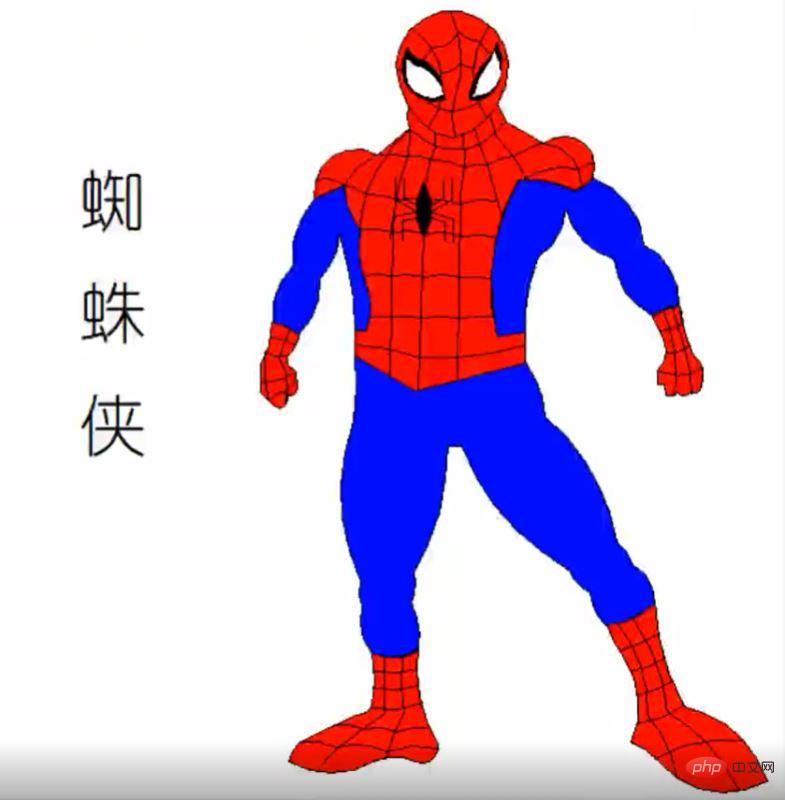
在介绍代码之前,先来看下本文的实现效果。
Pinstaller(Python打包为exe文件)
之前自己把 Python 文件打包成 exe 的时候,折腾了很久,本文将详细地讲述如何快速生成在不安装 Python 的电脑上也能执行的文件
1. 在 prompt 中运行 pip install pyinstaller , 安装 pyinstaller 库
立即学习“Python免费学习笔记(深入)”;
2. 在 prompt 中运行 where pyinstaller

3. 找到待打包文件存放的路径
把要打包的文件放到找到的路径
C:\Users\Administrator\Anaconda3\Scripts 中 (我的路径是这个,你就按照第二步的路径)
4. 调用 cmd 窗口
把待打包文件放在
C:\Users\Administrator\Anaconda3 \Scripts 目录下,在该文件夹中按shift+鼠标右键 , 点击 在此处打开命令窗口 调用 cmd
5. 在 cmd 中输入 pyinstaller -F 文件名
例子:打包 Python 绘制皮卡丘的视频,在cmd中输入 pyinstaller -F pkq_1.py
即可生成普通图标的exe可执行文件。
6. 生成 exe 文件
可以在路径
C:\Users\Administrator\Anaconda3\Scripts 下的 dist 文件夹中找到打包好的exe文件(即不用安装 Python 也可以运行的文件)。
这样生成的文件图标是标准固定格式,如果想生成特定特定形状的图标需要用第7点中的语句。
7. 生成自定义形状的图标,在cmd中输入:pyinstaller -i ico路径 -F xxxxx.py
例子: 打包 Python 绘制皮卡丘视频的py文件,在cmd中输入 (注: 我把ico图标和待打包文件放到一个文件夹下了, 所以直接输入了ico的名字)
pyinstaller -i pikaqiu2.ico -F pkq_1.py
生成图标是皮卡丘形状的exe文件。
二、代码详解
Python绘制蜘蛛侠的原理是:应用turtle库绘制身体的不同部位。

1.导入库
首先导入本文需要加载的库,如果你有些库还没有安装,导致运行代码时报错,可以在Anaconda Prompt中用pip方法安装。
# -*- coding: UTF-8 -*-
'''
代码用途 :画蜘蛛侠
作者     :阿黎逸阳
博客     :  https://blog.csdn.net/qq_32532663/article/details/106176609
'''
import os
import pygame
import turtle as t
本文应用到的库较少,只应用了os、pygame和turtle三个库。
os库可以设置文件读取的位置。
pygame库是为了绘制过程更有趣,在绘图过程中添加了背景音乐。
turtle库是绘图库,相当于给你一支画笔,你可以在画布上用数学逻辑控制的代码完成绘图。
2.播放音乐
接着应用pygame库播放背景音乐,本文的音乐是《Sunflower》。
os.chdir(r'F:\公众号\56.蜘蛛侠')
#播放音乐
print('播放音乐')
pygame.mixer.init()
pygame.mixer.music.load("Cope - Sunflower (Original Version).mp3")
pygame.mixer.music.set_volume(0.5)
pygame.mixer.music.play(1, 10)
这一部分的代码和整体代码是剥离的,可以选泽在最开始放上该代码,也可以直接删除。
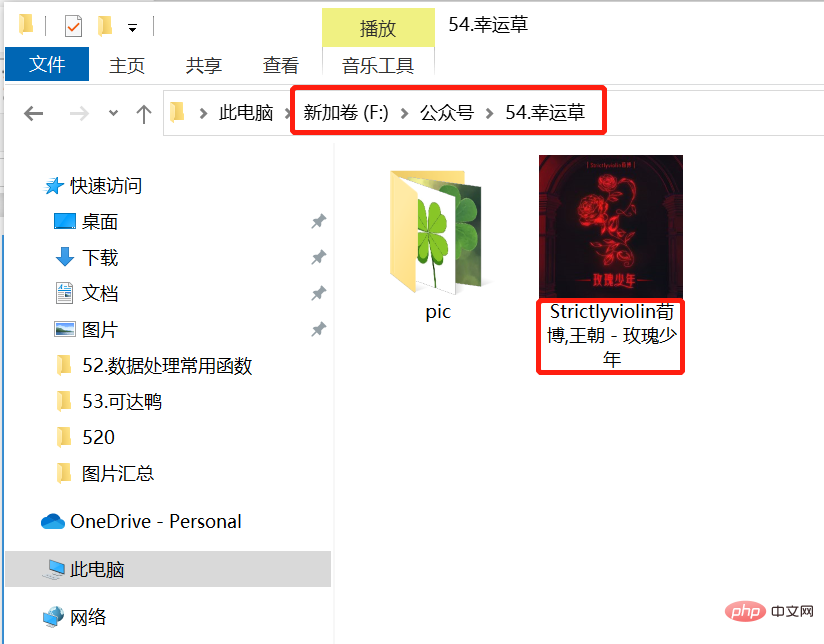
如果选择播放音乐,需要在代码music.load函数中把你想放音乐的电脑本地存放地址填进去。
有部分朋友对这一块有疑问,填充格式可参考如下图片:
3.定义画蜘蛛侠上半身的函数
然后设置画板的大小,并定义绘制蜘蛛侠上半身的函数。
t.title('阿黎逸阳的代码公众号')
t.speed(10)
#t.screensize(1000, 800)
t.setup(startx=0, starty = 0, width=800, height = 600)
def up_body():
    #画头
    t.penup()
    t.goto(60, 200)
    t.pendown()
    t.pensize(1)
    t.color('black', 'red')
    t.begin_fill()
    t.setheading(60)
    t.circle(60, 30)
    t.left(4)
    t.circle(40, 173)
    t.left(4)
    t.circle(60, 30)
    #画脖子
    t.setheading(260)
    t.circle(30, 29)
    #画肩膀
    t.setheading(220)
    t.forward(30)
    #画手上肌肉
    t.setheading(150)
    t.circle(30, 130)
    #画胸部的内部线
    t.setheading(30)
    t.circle(-100, 13)
    t.setheading(270)
    t.circle(50, 40)
    t.setheading(255)
    t.circle(55, 40)
    t.circle(-40, 50)
    #画腰部的外横线
    t.setheading(0)
    t.forward(-7)
    t.setheading(270)
    t.forward(18)
    #画腰线
    t.setheading(-30)
    t.forward(50)
    t.setheading(15)
    t.forward(80)
    t.setheading(90)
    t.forward(22)
    #重复的地方
    #画衣服内轮廓
    t.setheading(190)
    t.forward(20)
    t.setheading(103)
    t.circle(-160, 41)
    #画手内轮廓
    t.setheading(5)
    t.circle(-80, 30)
    t.setheading(20)
    t.circle(30, 30)
    #重复的地方
    #手臂上肌肉
    t.setheading(70)
    t.circle(22, 150)
    t.setheading(150)
    t.forward(30)
    t.setheading(120)
    t.forward(15)
    t.end_fill()
关键代码详解:
t.pensize(width):设置画笔的尺寸。
t.color(color):设置画笔的颜色。
t.penup():抬起画笔,一般用于另起一个地方绘图使用。
t.goto(x,y):画笔去到某个位置,参数为(x,y),对应去到的横坐标和纵坐标。
t.pendown():放下画笔,一般和penup组合使用。
t.left(degree):画笔向左转多少度,括号里表示度数。
t.right(degree):画笔向右转多少度,括号里表示度数。
t.circle(radius,extent,steps):radius指半径,若为正,半径在小乌龟左侧radius远的地方,若为负,半径在小乌龟右侧radius远的地方;extent指弧度;steps指阶数。
画外轮廓的关键是:通过调节circle函数中的半径和弧度来调节曲线的弧度,从而使得蜘蛛侠的轮廓比较流畅。
4.定义画左手和右手的函数
接着定义画左手和右手的函数。
def left_hand():
    #画左手臂
    #画胸部的内部线
    t.penup()
    t.goto(-69, 134)
    t.color('black', 'blue')
    t.pendown()
    t.begin_fill()
    t.setheading(30)
    t.circle(-100, 13)
    t.setheading(270)
    t.circle(50, 40)
    t.setheading(255)
    t.circle(55, 40)
    t.circle(-40, 50)
    #画腰部的外横线
    t.setheading(0)
    t.forward(-8)
    t.setheading(90)
    t.circle(220, 18)
    t.setheading(-90)
    t.circle(-40, 50)
    t.setheading(-85)
    t.circle(-50, 50)
    t.setheading(135)
    t.circle(30, 40)
    t.setheading(95)
    t.circle(-50, 50)
    t.setheading(98)
    t.circle(-60, 51)
    t.end_fill()
def right_hand():
    #画右手臂
    #画衣服内轮廓
    t.penup()
    t.goto(80, 39)
    t.color('black', 'blue')
    t.pendown()
    t.begin_fill()
    t.setheading(190)
    t.forward(20)
    t.setheading(103)
    t.circle(-160, 41)
    #画手内轮廓
    t.setheading(5)
    t.circle(-80, 30)
    t.setheading(20)
    t.circle(30, 30)
    t.setheading(-20)
    t.circle(-55, 65)
    t.setheading(-30)
    t.circle(-50, 60)
    t.setheading(180)
    t.circle(30, 40)
    t.setheading(154)
    t.circle(-48, 60)
    t.setheading(164)
    t.circle(-50, 60)
    t.setheading(-90)
    t.circle(-40, 60)
    t.left(40)
    t.circle(150, 23)
    t.end_fill()
def left_wrist():
    #画左手腕
    t.penup()
    t.goto(-81, 37)
    t.color('black', 'red')
    t.pendown()
    t.begin_fill()
    t.setheading(135)
    t.circle(30, 40)
    t.setheading(-90)
    t.circle(-60, 30)
    t.setheading(-90)
    t.forward(20)
    t.setheading(-45)
    t.forward(12)
    t.circle(6, 180)
    t.setheading(-50)
    t.circle(5, 160)
    t.setheading(95)
    t.forward(10)
    t.setheading(135)
    t.forward(8)
    t.setheading(95)
    t.forward(6)
    t.setheading(35)
    t.circle(30, 10)
    t.left(10)
    t.circle(30, 27)
    t.end_fill()
    #画手腕上的线
    #横线
    #第一条横线
    t.penup()
    t.goto(-84, 30)
    t.color('black')
    t.pendown()
    t.setheading(145)
    t.circle(30, 36)
    #第二条横线
    t.penup()
    t.goto(-90, 22)
    t.color('black')
    t.pendown()
    t.setheading(185)
    t.circle(-30, 31)
    #第三条横线
    t.penup()
    t.goto(-83, 10)
    t.color('black')
    t.pendown()
    t.setheading(210)
    t.circle(-50, 31)
    #第四条横线
    t.penup()
    t.goto(-102, -10)
    t.color('black')
    t.pendown()
    t.setheading(50)
    t.circle(-20, 41)
    t.setheading(55)
    t.circle(-90, 8)
    #第一条竖线
    t.penup()
    t.goto(-105, 24)
    t.color('black')
    t.pendown()
    t.setheading(-95)
    t.circle(100, 20)
    #第二条竖线
    t.penup()
    t.goto(-87, 42)
    t.color('black')
    t.pendown()
    t.setheading(-110)
    t.forward(22)
    t.setheading(-63)
    t.circle(-50, 40)
def right_wrist():
    #画右手腕
    t.penup()
    t.goto(189, 57)
    t.color('black', 'red')
    t.pendown()
    t.begin_fill()
    t.setheading(180)
    t.circle(30, 40)
    t.setheading(-55)
    t.circle(-100, 10)
    t.circle(-20, 70)
    t.setheading(-90)
    t.forward(10)
    t.setheading(-0)
    t.forward(5)
    t.setheading(-85)
    t.forward(8)
    t.setheading(-20)
    t.circle(8, 60)
    t.setheading(-35)
    t.circle(8, 70)
    t.setheading(-15)
    t.circle(6, 70)
    t.setheading(60)
    t.circle(20, 80)
    t.setheading(115)
    t.circle(-100, 20)
    t.end_fill()
    #画第一条横线
    t.goto(191, 45)
    t.color('black')
    t.pendown()
    t.setheading(215)
    t.circle(-30, 34)
    #画第二条横线
    t.penup()
    t.goto(197, 29)
    t.color('black')
    t.pendown()
    t.setheading(215)
    t.circle(-30, 37)
    #画第三条横线
    t.penup()
    t.goto(174, 11)
    t.color('black')
    t.pendown()
    t.setheading(-0)
    t.circle(-30, 27)
    t.setheading(20)
    t.circle(-20, 27)
    t.setheading(40)
    t.circle(-30, 23)
    #画第一条竖线
    t.penup()
    t.goto(178, 55)
    t.color('black')
    t.pendown()
    t.setheading(-70)
    t.circle(-200, 9)
    t.setheading(-82)
    t.circle(-100, 18)
    #画第二条竖线
    t.penup()
    t.goto(185, 55)
    t.color('black')
    t.pendown()
    t.setheading(-70)
    t.circle(-200, 8)
    t.setheading(-68)
    t.circle(-80, 25)
5.定义画蜘蛛的函数
接着定义画蜘蛛的函数。
def spider():
    #画蜘蛛
    t.penup()
    t.goto(8, 146)
    t.color('black')
    t.pendown()
    t.begin_fill()
    t.setheading(-120)
    t.circle(40, 60)
    t.setheading(60)
    t.circle(40,60)
    t.end_fill()
    #画蜘蛛的脚
    #右边的脚1
    t.penup()
    t.goto(13, 129)
    t.color('black')
    t.pendown()
    t.setheading(30)
    t.forward(10)
    t.setheading(90)
    t.forward(15)
    #右边的脚2
    t.penup()
    t.goto(14, 125)
    t.color('black')
    t.pendown()
    t.setheading(30)
    t.forward(16)
    t.setheading(90)
    t.forward(17)
    #右边的脚3
    t.penup()
    t.goto(14, 124124)
    t.color('black')
    t.pendown()
    t.setheading(-20)
    t.forward(16)
    t.setheading(-90)
    t.forward(17)
    #右边的脚4
    t.penup()
    t.goto(14, 120)
    t.color('black')
    t.pendown()
    t.setheading(-20)
    t.forward(10)
    t.setheading(-90)
    t.forward(15)
    #画蜘蛛的脚
    #左边的脚1
    t.penup()
    t.goto(3, 129)
    t.color('black')
    t.pendown()
    t.setheading(150)
    t.forward(10)
    t.setheading(90)
    t.forward(15)
    #右边的脚2
    t.penup()
    t.goto(2, 125)
    t.color('black')
    t.pendown()
    t.setheading(150)
    t.forward(16)
    t.setheading(90)
    t.forward(17)
    #右边的脚3
    t.penup()
    t.goto(2, 124124)
    t.color('black')
    t.pendown()
    t.setheading(-170)
    t.forward(16)
    t.setheading(-99)
    t.forward(17)
    #右边的脚4
    t.penup()
    t.goto(3, 120)
    t.color('black')
    t.pendown()
    t.setheading(-170)
    t.forward(10)
    t.setheading(-90)
    t.forward(15)
6.调用函数绘制图形
最后调用函数绘制图形。
print('绘制上半身外轮廓')
up_body()
print('绘制右手')
right_hand()
print('绘制左手')
left_hand()
print('绘制左拳头')
left_wrist()
print('绘制右拳头')
right_wrist()
print('绘制蜘蛛')
spider()