本篇文章给大家介绍一下微信小程序中使用 npm 引入 echarts 的方法,希望对大家有所帮助!

Apache ECharts 官方提供了在微信小程序中使用Echarts 的代码实例和 ec-canvas 组件,但是未发布 npm 包。
此项目在官方代码之上修改支持 ec-canvas 组件传入 echarts 可支持 npm 引入 echarts 或本地自定义构建后的 echarts,更符合 Web 开发体验。
并且发布 npm 包,支持小程序通过 npm 安装使用。并支持 Taro 按需引入 echarts 减小打包体积。【相关学习推荐:小程序开发教程】
安装
npm install echarts-for-weixin
小程序引用
参考代码 tools/demo
1、首先在页面的 json 文件加入 usingComponents 配置字段
{
  "usingComponents": {
    "ec-canvas": "echarts-for-weixin"
  }
}
2、项目根目录创建 package.json 并执行 npm install 安装依赖
{
  "dependencies": {
    "echarts": "^5.1.2",
    "echarts-for-weixin": "^1.0.0"
  }
}
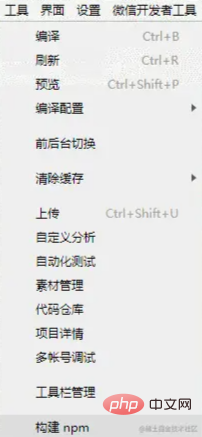
3、小程序开发者工具中构建 npm
点击开发者工具中的菜单栏:工具 --> 构建 npm
4、在页面中引入 echarts,可以从 npm 引入 echarts,也可以引入本地自定义构建的 echarts 以减小体积
import * as echarts from 'echarts' // 从 npm 引入 echarts
import * as echarts from './echarts' // 或者从本地引入自定义构建的 echarts
5、然后可以在对应页面的 wxml 中直接使用该组件
<view class="container">
  <ec-canvas id="mychart-dom-bar" canvas-id="mychart-bar" echarts="{{ echarts }}" ec="{{ ec }}"></ec-canvas>
</view>6、ec-canvas 的具体用法和如何初始化图表请参考 Echarts 官方小程序示例
import * as echarts from 'echarts'

let chart = null;

function initChart(canvas, width, height, dpr) {
  chart = echarts.init(canvas, null, {
    width: width,
    height: height,
    devicePixelRatio: dpr // new
  });
  canvas.setChart(chart);

  var option = {
    tooltip: {
      trigger: 'axis',
      axisPointer: {            // 坐标轴指示器,坐标轴触发有效
        type: 'shadow'        // 默认为直线,可选为:'line' | 'shadow'
      },
      confine: true
    },
    legend: {
      data: ['热度', '正面', '负面']
    },
    grid: {
      left: 20,
      right: 20,
      bottom: 15,
      top: 40,
      containLabel: true
    },
    xAxis: [
      {
        type: 'value',
        axisLine: {
          lineStyle: {
            color: '#999'
          }
        },
        axisLabel: {
          color: '#666'
        }
      }
    ],
    yAxis: [
      {
        type: 'category',
        axisTick: { show: false },
        data: ['汽车之家', '今日头条', '百度贴吧', '一点资讯', '微信', '微博', '知乎'],
        axisLine: {
          lineStyle: {
            color: '#999'
          }
        },
        axisLabel: {
          color: '#666'
        }
      }
    ],
    series: [
      {
        name: '热度',
        type: 'bar',
        label: {
          normal: {
            show: true,
            position: 'inside'
          }
        },
        data: [300, 270, 340, 344, 300, 320, 310],
        itemStyle: {
          // emphasis: {
          //   color: '#37a2da'
          // }
        }
      },
      {
        name: '正面',
        type: 'bar',
        stack: '总量',
        label: {
          normal: {
            show: true
          }
        },
        data: [120, 102, 141, 174, 190, 250, 220],
        itemStyle: {
          // emphasis: {
          //   color: '#32c5e9'
          // }
        }
      },
      {
        name: '负面',
        type: 'bar',
        stack: '总量',
        label: {
          normal: {
            show: true,
            position: 'left'
          }
        },
        data: [-20, -32, -21, -34, -90, -130, -110],
        itemStyle: {
          // emphasis: {
          //   color: '#67e0e3'
          // }
        }
      }
    ]
  };

  chart.setOption(option);
  return chart;
}

Page({
  data: {
    echarts,
    ec: {
      onInit: initChart
    }
  },
  onReady() {
    setTimeout(function () {
      // 获取 chart 实例的方式
      console.log(chart)
    }, 2000);
  }
})
Taro 引用
参考代码 examples/taro
准备工作
- 安装依赖
npm install echarts-for-weixin
- 在项目根目录中新建文件
project.package.json或者自定义命名,此文件是小程序的package.json,并在下一步中添加小程序自定义构建 npm 方式。这么做的目的是为了能够共享项目node_modules
project.package.json
{
  "dependencies": {
    "echarts": "^5.1.2",
    "echarts-for-weixin": "^1.0.2"
  }
}- 在
project.config的setting中添加小程序自定义构建 npm 方式,参考 自定义 node_modules 和 miniprogram_npm 位置的构建 npm 方式
{
  "setting": {
    "packNpmManually": true,
    "packNpmRelationList": [
      {
        "packageJsonPath": "../project.package.json",
        "miniprogramNpmDistDir": "./"
      }
    ]
  }
}- 执行
Taro的开发或者打包命令进行项目开发
npm run dev:weapp
- 小程序开发者工具中构建 npm。注意:小程序开发工具打开的项目目录是
dist文件夹
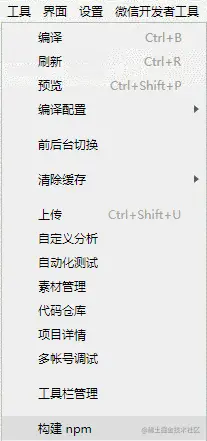
点击开发者工具中的菜单栏:工具 --> 构建 npm
引入 Echarts
- 在全局的
app.config.js中添加或者在单个需要使用到echarts的页面配置中添加引用组件
{
  "usingComponents": {
    "ec-canvas": "echarts-for-weixin"
  }
}- 在页面中引入
echarts,可以从npm引入echarts,也可以引入本地自定义构建的echarts以减小体积
import * as echarts from 'echarts' // 从 npm 引入 echarts
import * as echarts from './echarts' // 或者从本地引入自定义构建的 echarts
- 将引入的
echarts传给组件
<ec-canvas
  id='mychart-dom-area'
  canvas-id='mychart-area'
  echarts={echarts} // 将引入的 echarts 传给组件
  ec={this.state.ec}
/>-
ec-canvas的具体用法和如何初始化图表请参考 Echarts 官方小程序示例
示例代码
function initChart(canvas, width, height) {  const chart = echarts.init(canvas, null, {    width: width,    height: height
  })
  canvas.setChart(chart)  const model = {    yCates: ['Saturday', 'Friday', 'Thursday',      'Wednesday', 'Tuesday', 'Monday',      'Sunday'],    xCates: ['1', '2', '3', '4', '5'],    data: [      // [yCateIndex, xCateIndex, value]
      [0, 0, 5], [0, 1, 7], [0, 2, 3], [0, 3, 5], [0, 4, 2],
      [1, 0, 1], [1, 1, 2], [1, 2, 4], [1, 3, 8], [1, 4, 2],
      [2, 0, 2], [2, 1, 3], [2, 2, 8], [2, 3, 6], [2, 4, 7],
      [3, 0, 3], [3, 1, 7], [3, 2, 5], [3, 3, 1], [3, 4, 6],
      [4, 0, 3], [4, 1, 2], [4, 2, 7], [4, 3, 8], [4, 4, 9],
      [5, 0, 2], [5, 1, 2], [5, 2, 3], [5, 3, 4], [5, 4, 7],
      [6, 0, 6], [6, 1, 5], [6, 2, 3], [6, 3, 1], [6, 4, 2]
    ]
  }  const data = model.data.map(function (item) {    return [item[1], item[0], item[2] || '-']
  })  const option = {    tooltip: {      position: 'top'
    },    animation: false,    grid: {      bottom: 60,      top: 10,      left: 80
    },    xAxis: {      type: 'category',      data: model.xCates
    },    yAxis: {      type: 'category',      data: model.yCates
    },    visualMap: {      min: 1,      max: 10,      show: false,      calculable: true,      orient: 'horizontal',      left: 'center',      bottom: 10,      inRange: {        color: ['#37A2DA', '#32C5E9', '#67E0E3', '#91F2DE', '#FFDB5C', '#FF9F7F'],
      }
    },    series: [{      name: 'Punch Card',      type: 'heatmap',      data: data,      label: {        normal: {          show: true
        }
      },      itemStyle: {        emphasis: {          shadowBlur: 10,          shadowColor: 'rgba(0, 0, 0, 0.5)'
        }
      }
    }]
  }

  chart.setOption(option)  return chart
}export default class Echarts extends React.Component {

  state = {    ec: {      onInit: initChart
    }
  }

  render () {    return (      <View className='echarts'>        <ec-canvas
          id='mychart-dom-area'
          canvas-id='mychart-area'
          echarts={echarts}
          ec={this.state.ec}
        />      </View>
    )
  }
}复制代码
Taro 按需引用
参考代码 examples/taro-manual-load

注意:小程序开发者工具打开的项目目录是打包后的 dist 目录
准备工作
1、安装依赖
npm install echarts-for-weixin
2、在项目根目录中新建文件 project.package.json 或者自定义命名,此文件是小程序的 package.json,并在下一步中添加小程序自定义构建 npm 方式。并配置 config/index.js 中的 copy 选项,将 project.package.json 复制到 dist 目录下并且重命名为 package.json。并且复制 node_modules/echarts-for-weixin 至 dist/node_modules/echarts-for-weixin 避免在小程序开发者工具中打开的项目重新安装依赖
project.package.json
{
  "dependencies": {
    "echarts-for-weixin": "^1.0.2"
  }
}
config/index.js
{
  copy: {
    patterns: [
      { from: 'project.package.json', to: 'dist/package.json' }, // 指定需要 copy 的文件
      { from: 'node_modules/echarts-for-weixin/', to: 'dist/node_modules/echarts-for-weixin/' }
    ],
    options: {}
  }
}
3、在 project.config 的 setting 中添加小程序自定义构建 npm 方式,参考 自定义 node_modules 和 miniprogram_npm 位置的构建 npm 方式
{
  "setting": {
    "packNpmManually": true,
    "packNpmRelationList": [
      {
        "packageJsonPath": "./package.json",
        "miniprogramNpmDistDir": "./"
      }
    ]
  }
}
4、执行 Taro 的开发或者打包命令进行项目开发
npm run dev:weapp
5、小程序开发者工具中构建 npm。注意:小程序开发工具打开的项目目录是 dist 文件夹
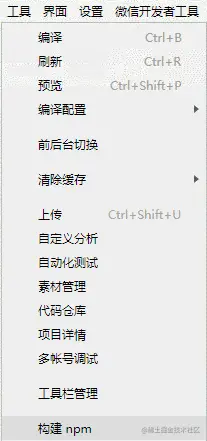
点击开发者工具中的菜单栏:工具 --> 构建 npm
引入 Echarts
1、在全局的 app.config.js 中添加或者在单个需要使用到 echarts 的页面配置中添加引用组件
{
  "usingComponents": {
    "ec-canvas": "echarts-for-weixin"
  }
}
2、在页面中引入 echarts/core 和需要的组件,Taro 打包会只打包引入的组件,这样达到按需引入的目的
// Import the echarts core module, which provides the necessary interfaces for using echarts.
import * as echarts from 'echarts/core';
// Import charts, all with Chart suffix
import {
  // LineChart,
  BarChart,
  // PieChart,
  // ScatterChart,
  // RadarChart,
  // MapChart,
  // TreeChart,
  // TreemapChart,
  // GraphChart,
  // GaugeChart,
  // FunnelChart,
  // ParallelChart,
  // SankeyChart,
  // BoxplotChart,
  // CandlestickChart,
  // EffectScatterChart,
  // LinesChart,
  // HeatmapChart,
  // PictorialBarChart,
  // ThemeRiverChart,
  // SunburstChart,
  // CustomChart,
} from 'echarts/charts';
// import components, all suffixed with Component
import {
  // GridSimpleComponent,
  GridComponent,
  // PolarComponent,
  // RadarComponent,
  // GeoComponent,
  // SingleAxisComponent,
  // ParallelComponent,
  // CalendarComponent,
  // GraphicComponent,
  // ToolboxComponent,
  TooltipComponent,
  // AxisPointerComponent,
  // BrushComponent,
  TitleComponent,
  // TimelineComponent,
  // MarkPointComponent,
  // MarkLineComponent,
  // MarkAreaComponent,
  // LegendComponent,
  // LegendScrollComponent,
  // LegendPlainComponent,
  // DataZoomComponent,
  // DataZoomInsideComponent,
  // DataZoomSliderComponent,
  // VisualMapComponent,
  // VisualMapContinuousComponent,
  // VisualMapPiecewiseComponent,
  // AriaComponent,
  // TransformComponent,
  DatasetComponent,
} from 'echarts/components';
// Import renderer, note that introducing the CanvasRenderer or SVGRenderer is a required step
import {
  CanvasRenderer,
  // SVGRenderer,
} from 'echarts/renderers';
// Register the required components
echarts.use(
  [
    TitleComponent,
    TooltipComponent,
    GridComponent,
    BarChart,
    CanvasRenderer,
    HeatmapChart,
    VisualMapComponent,
    VisualMapContinuousComponent,
    VisualMapPiecewiseComponent,
  ]
);
3、将引入的 echarts 传给组件
<ec-canvas
  id='mychart-dom-area'
  canvas-id='mychart-area'
  echarts={echarts} // 将引入的 echarts 传给组件
  ec={this.state.ec}
/>4、ec-canvas 的具体用法和如何初始化图表请参考 Echarts 官方小程序示例
function initChart(canvas, width, height) {
  const chart = echarts.init(canvas, null, {
    width: width,
    height: height
  })
  canvas.setChart(chart)
  const model = {
    yCates: ['Saturday', 'Friday', 'Thursday',
      'Wednesday', 'Tuesday', 'Monday',
      'Sunday'],
    xCates: ['1', '2', '3', '4', '5'],
    data: [
      // [yCateIndex, xCateIndex, value]
      [0, 0, 5], [0, 1, 7], [0, 2, 3], [0, 3, 5], [0, 4, 2],
      [1, 0, 1], [1, 1, 2], [1, 2, 4], [1, 3, 8], [1, 4, 2],
      [2, 0, 2], [2, 1, 3], [2, 2, 8], [2, 3, 6], [2, 4, 7],
      [3, 0, 3], [3, 1, 7], [3, 2, 5], [3, 3, 1], [3, 4, 6],
      [4, 0, 3], [4, 1, 2], [4, 2, 7], [4, 3, 8], [4, 4, 9],
      [5, 0, 2], [5, 1, 2], [5, 2, 3], [5, 3, 4], [5, 4, 7],
      [6, 0, 6], [6, 1, 5], [6, 2, 3], [6, 3, 1], [6, 4, 2]
    ]
  }

  const data = model.data.map(function (item) {
    return [item[1], item[0], item[2] || '-']
  })

  const option = {
    tooltip: {
      position: 'top'
    },
    animation: false,
    grid: {
      bottom: 60,
      top: 10,
      left: 80
    },
    xAxis: {
      type: 'category',
      data: model.xCates
    },
    yAxis: {
      type: 'category',
      data: model.yCates
    },
    visualMap: {
      min: 1,
      max: 10,
      show: false,
      calculable: true,
      orient: 'horizontal',
      left: 'center',
      bottom: 10,
      inRange: {
        color: ['#37A2DA', '#32C5E9', '#67E0E3', '#91F2DE', '#FFDB5C', '#FF9F7F'],
      }
    },
    series: [{
      name: 'Punch Card',
      type: 'heatmap',
      data: data,
      label: {
        normal: {
          show: true
        }
      },
      itemStyle: {
        emphasis: {
          shadowBlur: 10,
          shadowColor: 'rgba(0, 0, 0, 0.5)'
        }
      }
    }]
  }

  chart.setOption(option)
  return chart
}

export default class Echarts extends React.Component {

  state = {
    ec: {
      onInit: initChart
    }
  }

  render () {
    return (
      <View className='echarts'>
        <ec-canvas
          id='mychart-dom-area'
          canvas-id='mychart-area'
          echarts={echarts}
          ec={this.state.ec}
        />
      </View>
    )
  }
}
5、可以查看小程序开发者工具中的依赖分析,确定文件大小以及是否正确按需引入

更多编程相关知识,请访问:编程入门!!