



如何绘制pdf嵌套表格?本篇文章就给大家详细介绍绘制pdf嵌套表格的步骤。有一定的参考价值,有需要的朋友可以参考一下,希望对你们有所助。
嵌套表格,即在一张表格中的特定单元格中再插入一个或者多个表格,使用嵌套表格的优点在于能够让内容的布局更加合理,同时也方便程序套用。下面的示例中,将介绍如何通过C#编程来演示如何插入嵌套表格到PDF文档。
要点概括:
1. 插入嵌套表格
2. 插入文字到嵌套表格
3. 插入图片到嵌套表格
使用工具
Spire.PDF 4.9.7
注:
1.这里使用的版本为4.9.7,经测试,对于代码中涉及的PdfGridCellContentList类和PdfGridCellContent类仅在使用该版本或者以上版本可用。使用时,请注意版本信息。
2.下载安装后,在编辑代码时,请注意添加引用Spire.Pdf.dll(dll文件可在安装路径下的Bin文件夹下获取)
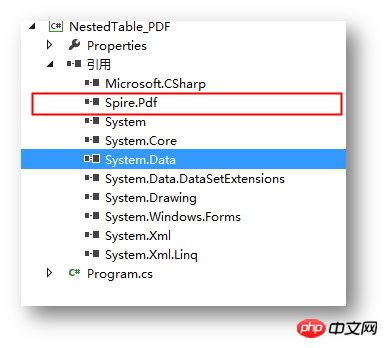
示例代码(供参考)
步骤 1 :创建文档
PdfDocument pdf = new PdfDocument();
PdfPageBase page = pdf.Pages.Add();
步骤 2 :添加字体、画笔,写入文本到PDF文档
PdfTrueTypeFont font = new PdfTrueTypeFont(new Font("行楷", 11f), true);
PdfPen pen = new PdfPen(Color.Gray);string text = "2018 Pyeongchang Olympic Winter Games Medal Ranking";
page.Canvas.DrawString(text, font, pen, 100, 50);
步骤 3 :创建第一个表格

//创建一个PDF表格,并添加两行
PdfGrid grid = new PdfGrid();
PdfGridRow row1 = grid.Rows.Add();
PdfGridRow row2 = grid.Rows.Add();

//设置表格的单元格内容和边框之间的上、下边距
grid.Style.CellPadding.Top = 5f;
grid.Style.CellPadding.Bottom = 5f;

//添加三列,并设置列宽grid.Columns.Add(3);
grid.Columns[0].Width = 120f;
grid.Columns[1].Width = 150f;
grid.Columns[2].Width = 120f;
步骤 4 :创建一个嵌套表格
//创建一个一行两列的嵌套表格
PdfGrid embedGrid1 = new PdfGrid();
PdfGridRow newRow = embedGrid1.Rows.Add();
embedGrid1.Columns.Add(2);

//设置嵌套表格的列宽
embedGrid1.Columns[0].Width = 50f;
embedGrid1.Columns[1].Width = 60f;
步骤 5 :添加文本、图片到嵌套表格
//初始化SizeF类,设置图片大小
SizeF imageSize = new SizeF(45, 35);

//实例化PdfGridCellContentList、PdfGridCellContent类,加载需要添加到嵌套表格的图片
PdfGridCellContentList contentList = new PdfGridCellContentList();
PdfGridCellContent content = new PdfGridCellContent();
content.Image = PdfImage.FromFile("1.png");
content.ImageSize = imageSize;
contentList.List.Add(content);
//实例化PdfStringFormat、PdfTrueTypeFont类,设置单元格文字对齐方式
PdfStringFormat stringFormat = new PdfStringFormat(PdfTextAlignment.Center, PdfVerticalAlignment.Middle);

//添加文本内容及图片到嵌套表格
newRow.Cells[0].Value = "Norway";
newRow.Cells[0].StringFormat = stringFormat;
newRow.Cells[1].Value = contentList; //将图片添加到嵌套表格的第二个单元格
newRow.Cells[1].StringFormat = stringFormat;
步骤 6 :添加数据到第一个表格
//设置第一个表格的单元格的值和格式row1.Cells[0].Value = "Rank";
row1.Cells[0].StringFormat = stringFormat;
row1.Cells[0].Style.Font = font;
row1.Cells[0].Style.BackgroundBrush = PdfBrushes.LightSalmon;
row1.Cells[1].Value = "Country";
row1.Cells[1].StringFormat = stringFormat;
row1.Cells[1].Style.Font = font;
row1.Cells[1].Style.BackgroundBrush = PdfBrushes.LightSalmon;
row1.Cells[2].Value = "Total";
row1.Cells[2].StringFormat = stringFormat;
row1.Cells[2].Style.Font = font;
row1.Cells[2].Style.BackgroundBrush = PdfBrushes.LightSalmon;

row2.Cells[0].Value = "1";
row2.Cells[0].StringFormat = stringFormat;
row2.Cells[0].Style.Font = font;
row2.Cells[1].Value = embedGrid1; //将嵌套表格添加到第一个表格的第二行第二个单元格
row2.Cells[1].StringFormat = stringFormat;

row2.Cells[2].Value = "39";
row2.Cells[2].StringFormat = stringFormat;
row2.Cells[2].Style.Font = font;
步骤 7:将表格绘制到页面指定位置
grid.Draw(page, new PointF(30f, 90f));
步骤 8 :保存文档
pdf.SaveToFile("result.pdf");完成代码后,调试程序,生成文档。绘制的表格如下:
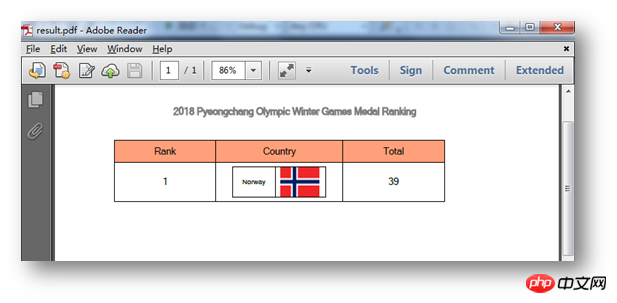
全部代码:
using Spire.Pdf;
using Spire.Pdf.Graphics;
using Spire.Pdf.Grid;
using System.Drawing;
using System.Windows.Forms;
using System;

namespace NestedTable_PDF
{
    class Program
    {
        static void Main(string[] args)
        {
            //实例化PdfDocument类,并添加页面到新建的文档
            PdfDocument pdf = new PdfDocument();
            PdfPageBase page = pdf.Pages.Add();

            //添加字体、画笔,写入文本到PDF文档
            PdfTrueTypeFont font = new PdfTrueTypeFont(new Font("行楷", 11f), true);
            PdfPen pen = new PdfPen(Color.Gray);
            string text = "2018 Pyeongchang Olympic Winter Games Medal Ranking";
            page.Canvas.DrawString(text, font, pen, 100, 50);

            //创建一个PDF表格,并添加两行
            PdfGrid grid = new PdfGrid();
            PdfGridRow row1 = grid.Rows.Add();
            PdfGridRow row2 = grid.Rows.Add();

            //设置表格的单元格内容和边框之间的上、下边距
            grid.Style.CellPadding.Top = 5f;
            grid.Style.CellPadding.Bottom = 5f;

            //添加三列,并设置列宽
            grid.Columns.Add(3);
            grid.Columns[0].Width = 120f;
            grid.Columns[1].Width = 150f;
            grid.Columns[2].Width = 120f;

            //创建一个一行两列的嵌套表格
            PdfGrid embedGrid1 = new PdfGrid();
            PdfGridRow newRow = embedGrid1.Rows.Add();
            embedGrid1.Columns.Add(2);

            //设置嵌套表格的列宽
            embedGrid1.Columns[0].Width = 50f;
            embedGrid1.Columns[1].Width = 60f;

            //初始化SizeF类,设置图片大小
            SizeF imageSize = new SizeF(45, 35);

            //实例化PdfGridCellContentList、PdfGridCellContent类,加载需要添加到嵌套表格的图片
            PdfGridCellContentList contentList = new PdfGridCellContentList();
            PdfGridCellContent content = new PdfGridCellContent();
            content.Image = PdfImage.FromFile("1.png");
            content.ImageSize = imageSize;
            contentList.List.Add(content);
            //实例化PdfStringFormat、PdfTrueTypeFont类,设置单元格文字对齐方式
            PdfStringFormat stringFormat = new PdfStringFormat(PdfTextAlignment.Center, PdfVerticalAlignment.Middle);

            //添加文本内容及图片到嵌套表格
            newRow.Cells[0].Value = "Norway";
            newRow.Cells[0].StringFormat = stringFormat;
            newRow.Cells[1].Value = contentList; //将图片添加到嵌套表格的第二个单元格
            newRow.Cells[1].StringFormat = stringFormat;

            //设置第一个表格的单元格的值和格式
            row1.Cells[0].Value = "Rank";
            row1.Cells[0].StringFormat = stringFormat;
            row1.Cells[0].Style.Font = font;
            row1.Cells[0].Style.BackgroundBrush = PdfBrushes.LightSalmon;
            row1.Cells[1].Value = "Country";
            row1.Cells[1].StringFormat = stringFormat;
            row1.Cells[1].Style.Font = font;
            row1.Cells[1].Style.BackgroundBrush = PdfBrushes.LightSalmon;
            row1.Cells[2].Value = "Total";
            row1.Cells[2].StringFormat = stringFormat;
            row1.Cells[2].Style.Font = font;
            row1.Cells[2].Style.BackgroundBrush = PdfBrushes.LightSalmon;

            row2.Cells[0].Value = "1";
            row2.Cells[0].StringFormat = stringFormat;
            row2.Cells[0].Style.Font = font;
            row2.Cells[1].Value = embedGrid1; //将嵌套表格添加到第一个表格的第二行第二个单元格
            row2.Cells[1].StringFormat = stringFormat;

            row2.Cells[2].Value = "39";
            row2.Cells[2].StringFormat = stringFormat;
            row2.Cells[2].Style.Font = font;

            //将表格绘制到页面指定位置
            grid.Draw(page, new PointF(30f, 90f));

            //保存文档并打开
            pdf.SaveToFile("result.pdf");
            System.Diagnostics.Process.Start("result.pdf");
        }
    }
}
以上是本次C#在PDF中绘制嵌套表格的全部内容。
更多相关教程,请访问:
(本文完)




