



本篇文章主要介绍了canvas环形倒计时组件的示例代码,内容挺不错的,现在分享给大家,也给大家做个参考。
本文介绍了canvas环形倒计时组件的示例代码,分享给大家,具体如下:
效果如下图一:

Canvas环形倒计时组件
Canvas环形倒计时是基于Canvas实现的倒计时,建议于移动端使用
Canvas环形倒计时 下载地址
一、如何使用
1. html代码
ID属性可随意取名
2. 引入process.js文件
页面引用
3. 初始化参数
实例化即可
二、settings参数说明
以下参数非必选项,可根据具体需求配置
window.onload = function () {
        let ctd = new Countdown();
        ctd.init({
            id: "canvas",         // ID,canvas一定要有ID属性
            size: 130,            // 绘制圆形的最大尺寸,宽=高
            borderWidth: 4,       // 边框宽度
            borderColor:"#fff",   // 边框颜色
            outerColor:"#fff",    // 最外层底圆颜色
            scheduleColor:"#fff", // 进度条动画颜色
            fontColor: "#fff",    // 字体颜色
            ringColor: "#ffc720", // 进度条环形颜色
            innerColor: "#4e84e5",// 最内圆底色
            fontSize: 50,
            time: 5
        });
    };
三、示例代码
html
Title
js
/**
 * Created by 谭瞎 on 2018/3/15.
 */

function Countdown() {
    // 设置默认参数
    this.settings = {
        id: "canvas",         // ID,canvas一定要有ID属性
        size: 130,            // 绘制圆形的最大尺寸,宽=高
        borderWidth: 4,       // 边框宽度
        borderColor:"#fff",   // 边框颜色
        outerColor:"#fff",    // 最外层底圆颜色
        scheduleColor:"#fff", // 进度条动画颜色
        fontColor: "#fff",    // 字体颜色
        ringColor: "#ffc720", // 进度条环形颜色
        innerColor: "#4e84e5",// 最内圆底色
        fontSize: 50,
        time: 5
    }
}

Countdown.prototype.init = function (opt) {
    this.obj = document.getElementById(this.settings.id);
    this.obj.width = this.settings.size;
    this.obj.height = this.settings.size;
    this.ctx = this.obj.getContext("2d");
    extend(this.settings, opt);
    this.countdown();
};

// 绘制底色
Countdown.prototype.drawBackground = function () {
    this.drawCircle(0, 360, 0, this.settings.outerColor);
};
// 绘制进度条动画背景
Countdown.prototype.drawProcess = function () {
    this.drawCircle(0, 360, 4, this.settings.ringColor);
};

// 绘制倒计时
Countdown.prototype.drawInner = function () {
    this.drawCircle(0, 360, 23, this.settings.innerColor);
    this.strokeBorder(this.settings.borderWidth);
};

// 绘制进度条动画
Countdown.prototype.drawAnimate = function () {
    // 旋转的角度
    let deg = Math.PI / 180;
    let v = schedule * 360,
        startAng = -90,
        endAng = -90 + v;

    this.ctx.beginPath();
    this.ctx.moveTo(this.settings.size / 2, this.settings.size / 2);
    this.ctx.arc(this.settings.size / 2, this.settings.size / 2, this.settings.size / 2 -3, startAng * deg, endAng * deg, false);
    this.ctx.fillStyle = this.settings.scheduleColor;
    this.ctx.fill();
    this.ctx.closePath();

};
// 绘制边框
Countdown.prototype.strokeBorder = function (borderWidth) {
    this.ctx.lineWidth = borderWidth;
    this.ctx.strokeStyle = this.settings.borderColor;
    this.ctx.stroke();
};
// 绘制文字
Countdown.prototype.strokeText = function (text) {
    this.ctx.textAlign = "center";
    this.ctx.textBaseline = "middle";
    this.ctx.font = this.settings.fontSize+"px"+ " microsoft yahei";
    this.ctx.fillStyle = this.settings.fontColor;
    this.ctx.fillText(text, this.settings.size / 2, this.settings.size / 2);
};
// 绘制圆
Countdown.prototype.drawCircle = function (startAng, endAng, border, fillColor) {
    let deg = Math.PI / 180;
    this.ctx.beginPath();
    this.ctx.arc(this.settings.size / 2, this.settings.size / 2, this.settings.size / 2 -border, startAng * deg, endAng * deg, false);
    this.ctx.fillStyle = fillColor;
    this.ctx.fill();
    this.ctx.closePath();
};
// 进度条动画
Countdown.prototype.countdown = function () {
    let oldTime = +new Date();
    timer = setInterval(() => {
        let allMs = this.settings.time * 1000,// 如30*1000=30 000ms
            currentTime = +new Date();
        // 步长=(当前的时间-过去的时间)/总秒数
        schedule = (currentTime - oldTime) / allMs;
        this.schedule = schedule;

        this.drawAll(schedule);
        if (currentTime - oldTime >= allMs) {
            // 重绘
            this.drawBackground();
            this.drawProcess();
            this.drawAnimate();
            this.drawInner();
            this.strokeText(0);
            clearInterval(timer);
        }
    }, 100);
};

// 绘制所有
Countdown.prototype.drawAll = function (schedule) {
    schedule = schedule >= 1 ? 1 : schedule;
    let text = parseInt(this.settings.time * (1 - schedule)) + 1;
    // 清除画布
    this.ctx.clearRect(0, 0, this.settings.size, this.settings.size);
    this.drawBackground();
    this.drawProcess();
    this.drawAnimate();
    this.drawInner();
    this.strokeText(text);
};

// 对象拷贝
function extend(obj1,obj2){
    for(let attr in obj2){
        obj1[attr] = obj2[attr];
    }
}
四、附加——canvas准备工作
canvas其实没有那么玄乎,它不外乎是一个H5的标签,跟其它HTML标签如出一辙:

注意最好在一开始的时候就给canvas设置好其宽高(若不设定宽高,浏览器会默认设置canvas大小为宽300、高100像素),而且不能使用css来设置(会被拉伸),建议直接写于canvas标签内部:
canvas本身没有任何的绘图能力,所有的绘图工作都是通过js来实现的。通常我们在js通过getElementById来获取要操作的canvas(这意味着得给canvas设个id):
var c = document.getElementById("canvas");
var ctx = c.getContext("2d");
1.准备好画笔之后就可以开始绘图了,环形其实就是半径不同的同心圆,圆心坐标是(size/2,size/2), 先画一个最大的白色背景底圆,半径是size/2。
let deg = Math.PI / 180;
// beginPath()可以做到隔离路径绘制效果的作用,防止之前的效果被污染。
ctx.beginPath();

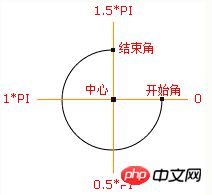
// tcx.arc(圆心X,圆心Y,半径,起始角度,结束角度,顺逆时针);
ctx.arc(size / 2, size / 2, size / 2, 0* deg, 360 * deg, false);
ctx.fillStyle = "#fff";
ctx.fill();
ctx.closePath();

2.开始画第二个黄色打底圆,圆心也是(size/2,size/2),只是半径比白色底圆小4px,所以黄色底圆的半径是(size/2-4)
let deg = Math.PI / 180;
// beginPath()可以做到隔离路径绘制效果的作用,防止之前的效果被污染。
ctx.beginPath();

// tcx.arc(圆心X,圆心Y,半径,起始角度,结束角度,顺逆时针);
ctx.arc(size / 2, size / 2, size / 2-4, 0* deg, 360 * deg, false);
ctx.fillStyle = "#fff";
ctx.fill();
ctx.closePath();

3.开始画蓝色内圆,同理圆心为(size/2,size/2),半径为(size-23),再给它加上4px的白色边框。
let deg = Math.PI / 180;
// beginPath()可以做到隔离路径绘制效果的作用,防止之前的效果被污染。
ctx.beginPath();

// tcx.arc(圆心X,圆心Y,半径,起始角度,结束角度,顺逆时针);
ctx.arc(size / 2, size / 2, size / 2-23, 0* deg, 360 * deg, false);
ctx.fillStyle = "#fff";
ctx.fill();
ctx.closePath();

// 白色边框
ctx.lineWidth = 4;
ctx.strokeStyle = #fff;
ctx.stroke();

4.绘制文字,垂直居中
ctx.textAlign = "center";
ctx.textBaseline = "middle";
ctx.fillStyle = "#fff";
// ctx.fillText(文字,相对画布的X坐标,相对画布的Y坐标)
ctx.fillText(30, size / 2, size / 2);

5.如何制作动画?其实也是画白色圆的过程,慢慢的覆盖黄色进度条的过程,那么先把白色的圆画出来出来,这个时候蓝圆就会被白色的动画圆给盖住,这个时候最后画蓝圆就好了。
let deg = Math.PI / 180;
ctx.beginPath();
// tcx.arc(圆心X,圆心Y,半径,起始角度,结束角度,顺逆时针);
ctx.arc(size / 2, size / 2, size / 2-4, 0* deg, 360 * deg, false);
ctx.fillStyle = "#fff";
ctx.fill();
ctx.closePath();
6.比较简单的绘画过程完成了,接下来要将动画和数字关联起来,利用当前的最新时间-最开始的时间,再除总的时间可以得到一个关键的百分比,这个百分比决定数字的变化,以及白色动画圆绘制的角度。
Countdown.prototype.countdown = function () {
    let oldTime = +new Date();// 过去的时间:1522136419291
    timer = setInterval(() => {
        let currentTime = +new Date();// 现在的时间:1522136419393
        let allMs = this.settings.time * 1000;// 总时间豪秒数:如30*1000=30 000ms
        schedule = (currentTime - oldTime) / allMs;// 绘制百分比:(1522136419393-1522136419291)/30000=0.0204
        this.schedule = schedule;
        this.drawAll(schedule);
        if (currentTime - oldTime >= allMs) {
            // 重绘
            this.drawBackground();
            this.drawProcess();
            this.drawAnimate();
            this.drawInner();
            this.strokeText(0);
            clearInterval(timer);
        }
    }, 10);
};

// 绘制所有
Countdown.prototype.drawAll = function (schedule) {
    schedule = schedule >= 1 ? 1 : schedule;
    let text = parseInt(this.settings.time * (1 - schedule)) + 1;
    // 清除画布
    this.ctx.clearRect(0, 0, this.settings.size, this.settings.size);
    this.drawBackground();
    this.drawProcess();
    this.drawAnimate();
    this.drawInner();
    this.strokeText(text);
};

// 绘制进度条动画
Countdown.prototype.drawAnimate = function () {
    // 旋转的角度
    let deg = Math.PI / 180;
    let v = schedule * 360,
        startAng = -90,// 开始角度
        endAng = -90 + v;// 结束角度

    this.ctx.beginPath();
    this.ctx.moveTo(this.settings.size / 2, this.settings.size / 2);
    this.ctx.arc(this.settings.size / 2, this.settings.size / 2, this.settings.size / 2 - 3, startAng * deg, endAng * deg, false);
    this.ctx.fillStyle = this.settings.scheduleColor;
    this.ctx.fill();
    this.ctx.closePath();
};
面向过程版本
/**
    * 进度条动画
    */
    countdown: function () {
        this.getSystemInfo().then(v => {
            // 自适应
            let width = v.windowWidth,
                size = width >= 414 ? 66 : 400 / 414 * 66;
            size = parseInt(size);
            size = size % 2 ? size + 1 : size;

            let maxtime =30,
                sTime = +new Date,

                temp = setInterval(() => {
                    let time = maxtime * 1000,
                        currentTime = +new Date,
                        schedule = (currentTime - sTime) / time;

                    this.drew(schedule, maxtime, size);

                    if (currentTime - sTime >= time) {
                        // 绘制文字
                        this.setData({
                            schedule: 0
                        });
                        clearInterval(temp);
                    };
                }, 100);

        });
    },

    /**
     * 绘制
     */
    drew: function (schedule, val, size) {
        size = size || 66;
        const _ts = this;
        schedule = schedule >= 1 ? 1 : schedule;

        let text = parseInt(val - val * schedule),
            r = size / 2,
            deg = Math.PI / 180;

        _ts.setData({
            width: size,
            height: size,
            schedule: text + 1
        });

        // 清除画布
        ctx.clearRect(0, 0, size, size);

        // 绘制白色底
        ctx.beginPath();
        ctx.arc(r, r, r, 0 * deg, 360 * deg);
        ctx.fillStyle = 'rgba(255,255,255,1)';
        ctx.closePath();
        ctx.fill();

        // 绘制橙色
        ctx.beginPath();
        ctx.arc(r, r, r - 2, 0 * deg, 360 * deg);
        ctx.fillStyle = 'rgba(248,200,80,1)';
        ctx.closePath();
        ctx.fill();

        // 绘制白色进度条
        let v = schedule * 360;

        ctx.beginPath();
        ctx.moveTo(r, r);
        ctx.arc(r, r, r, -90 * deg, (-90 + v) * deg);

        ctx.fillStyle = 'rgba(255,255,255,1)';
        ctx.closePath();
        ctx.fill();

        // 中心蓝色底
        ctx.beginPath();
        ctx.arc(r, r, r - 12, 0 * deg, 360 * deg);
        ctx.fillStyle = 'rgba(90,140,220,1)';
        ctx.closePath();
        ctx.fill();

        // 绘制文字
        ctx.strokeText();

        // 统一画
        ctx.draw();

    },
以上就是本文的全部内容,希望对大家的学习有所帮助,更多相关内容请关注PHP中文网!
相关推荐:




