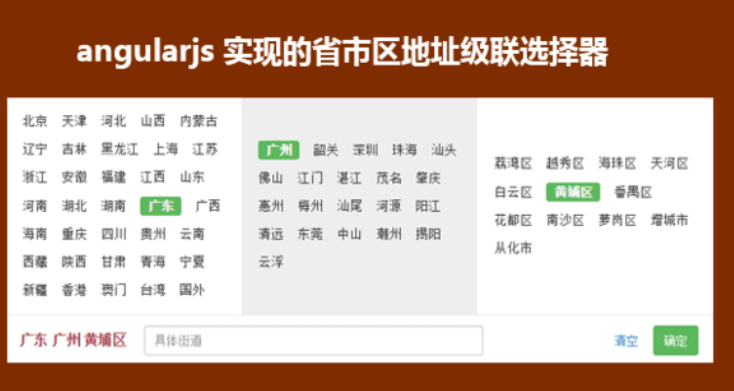
这次给大家带来react native实现地址选择器功能,react native实现地址选择器功能的注意事项有哪些,下面就是实战案例,一起来看一下。
import React, { Component, PropTypes } from 'react';
import {
 ViewPropTypes,
 StyleSheet,
 View,
 TouchableOpacity,
 TouchableNativeFeedback,
 Platform,
 Animated,
 Text
} from 'react-native';
export default class SelectCityTabBar extends Component {
 //属性声名
 static propTypes = {
  goToPage: PropTypes.func,
  activeTab: PropTypes.number,
  tabs: PropTypes.array,
  backgroundColor: PropTypes.string,
  activeTextColor: PropTypes.string,
  inactiveTextColor: PropTypes.string,
  textStyle: Text.propTypes.style,
  tabStyle: ViewPropTypes.style,
  renderTab: PropTypes.func,
  underlineStyle: ViewPropTypes.style,
 };
 //默认属性
 static defaultProps = {
  activeTextColor: '#FA3D4F',
  inactiveTextColor: 'black',
  backgroundColor: null,
 }
 renderTab(name, page, isTabActive, onPressHandler) {
  const { activeTextColor, inactiveTextColor, textStyle, } = this.props;
  const textColor = isTabActive ? activeTextColor : inactiveTextColor;
  const fontWeight = isTabActive ? 'bold' : 'normal';
  const viewStyle = isTabActive ? [styles.tab, { borderBottomWidth: Constant.sizepiderLarge, borderColor: Constant.colorPrimary }] : styles.tab;
  if (Platform.OS !== 'ios') {
   return <TouchableNativeFeedback
    delayPressIn={0}
    background={TouchableNativeFeedback.SelectableBackground()}
    key={name + page}
    accessible={true}
    accessibilityLabel={name}
    accessibilityTraits='button'
    onPress={() => onPressHandler(page)}
   >
    <View style={viewStyle}>
     <Text style={[{ color: textColor, fontWeight, }, textStyle,]}>
      {name}
     </Text>
    </View>
   </TouchableNativeFeedback>
  }
  return <TouchableOpacity
   key={name + page}
   accessible={true}
   accessibilityLabel={name}
   accessibilityTraits='button'
   onPress={() => onPressHandler(page)}
  >
   <View style={viewStyle}>
    <Text style={[{ color: textColor, fontWeight, }, textStyle,]}>
     {name}
    </Text>
   </View>
  </TouchableOpacity>;
 }
 render() {
  return (
   <View style={{ flexDirection: 'row', borderBottomWidth: Constant.sizepiderNormal, borderColor: Constant.colorpider }}>
    {this.props.tabs.map((name, page) => {
     const isTabActive = this.props.activeTab === page;
     const renderTab = this.props.renderTab || this.renderTab;
     return this.renderTab(name, page, isTabActive, this.props.goToPage);
    })}
   </View>
  );
 }
}
const styles = StyleSheet.create({
 tab: {
  alignItems: 'center',
  justifyContent: 'center',
  paddingBottom: 10,
  marginLeft: 10,
 },
 tabs: {
  height: 50,
  flexDirection: 'row',
  justifyContent: 'space-around',
  borderWidth: 1,
  borderTopWidth: 0,
  borderLeftWidth: 0,
  borderRightWidth: 0,
  borderColor: '#ccc',
 },
});
npm react-native-scrollable-tab-view 组件
import React, { Component } from 'react';
import {
 StyleSheet,
 View,
 ScrollView,
 Dimensions,
 TouchableOpacity,
 InteractionManager,
 Platform,
 UIManager,
 Text
} from 'react-native';
import ScrollableTabView from 'react-native-scrollable-tab-view';
import SelectCityTabBar from './SelectCityTabBar'
import AREA_JSON from '../../util/area.json';
const { height, width } = Dimensions.get('window');
export default class AddressSelect extends Component {
 static defaultProps = {
  commitFun: function (value) {
   console.log(value);
  },
  dissmissFun: function () {
  },
  lastAddress: null,
 };
 constructor(props) {
  super(props);
  if (Platform.OS === 'android') {
   UIManager.setLayoutAnimationEnabledExperimental(true)
  }
  const { lastAddress } = props;
  let selectAddress = this.initAddress(lastAddress);
  this.state = {
   selectAddress
  }
 }
 initAddress(lastAddress) {
  let selectAddress = [
   {
    value: null,
    label: null,
    children: AREA_JSON,
   }, {
    value: null,
    label: null,
    children: null,
   }, {
    value: null,
    label: null,
    children: null,
   }];
  let array = null;
  function fun(array, value) {
   for (let item of array) {
    if (item.value + '' === value + '') {
     return item;
    }
   }
  }
  try {
   selectAddress = selectAddress.map((item, index) => {
    let result = fun(array ? array : AREA_JSON, lastAddress[index].value);
    if (result.children) {
     array = result.children;
    }
    return result;
   });
  } catch (e) {
   console.log('-----e-', e);
  }
  return selectAddress
 }
 /**
  * 列表行
  * @param item
  * @param i
  * @returns {XML}
  */
 renderListItem(item, i) {
  let itemStyle = styles.itemStyle;
  let textStyle = styles.itemText;
  let { selectAddress } = this.state;
  if (item.label === selectAddress[i].label) {
   itemStyle = [itemStyle];
   textStyle = [textStyle, { color: 'red' }]
  }
  return (
   <TouchableOpacity
    style={itemStyle}
    key={i + item.label}
    onPress={() => {
     this.pressItem(item, i)
    }}
   >
    <Text style={textStyle}>{item.label}</Text>
   </TouchableOpacity>
  )
 }
 /**
  * 点击列表事件
  * @param item 选中数据
  * @param i 选中行数
  */
 pressItem(item, i) {
  let { selectAddress } = this.state;
  const initObj = {
   value: null,
   label: null,
   children: null,
  }
  let tempIndex = 0;
  if (i === 0) {
   selectAddress[0] = item;
   selectAddress[1] = initObj;
   selectAddress[2] = initObj;
   tempIndex = 1
  } else if (i === 1) {
   selectAddress[1] = item;
   selectAddress[2] = initObj;
   tempIndex = 2
  } else {
   selectAddress[2].value = item.value;
   selectAddress[2].label = item.label;
   tempIndex = 2
   let address = [
    {
     label: selectAddress[0].label,
     value: selectAddress[0].value
    },
    {
     label: selectAddress[1].label,
     value: selectAddress[1].value
    },
    {
     label: selectAddress[2].label,
     value: selectAddress[2].value
    }
   ]
   this.props.commitFun && this.props.commitFun(address);
   this.props.dissmissFun && this.props.dissmissFun();
   return null;
  }
  this.setState({ selectAddress });
  InteractionManager.runAfterInteractions(() => {
   this.tabView.goToPage(tempIndex)
  })
 }
 render() {
  const { selectAddress } = this.state;
  return (
   <View style={styles.container}>
    <View style={{ width: width, height: 40, flexDirection: 'row', justifyContent: 'center', alignItems: 'center', }}>
     <Text>所在地区</Text>
    </View>
    <ScrollableTabView
     ref={(tabView) => {
      this.tabView = tabView;
     }}
     renderTabBar={() => <SelectCityTabBar />}
    >
     {selectAddress.map((obj, i) => {
      let array = (i === 0) ? AREA_JSON : selectAddress[i - 1].children;
      if (array) {
       return (
        <ScrollView
         key={i}
         tabLabel={obj.label || '请选择'}
         style={styles.scrollStyleList}
        >
         {array && array.map((obj2, j) => {
          return this.renderListItem(obj2, i)
         })}
        </ScrollView>
       )
      }
     })}
    </ScrollableTabView>
   </View>
  );
 }
}
const styles = StyleSheet.create({
 container: {
  height: height * 0.6,
  backgroundColor: '#F5FCFF',
 },
 scrollStyleList: {
  width: width,
  marginBottom: Constant.sizeMarginDefault,
  marginTop: Constant.sizeMarginDefault,
 },
 itemStyle: {
  marginTop: 5,
  width: width,
  height: 35,
  marginLeft: Constant.sizeMarginDefault,
  justifyContent: 'center'
 },
 itemText: {
  fontSize: 15,
  color: '#333333'
 },
使用方法:
import React, {Component} from 'react';
import {
 StyleSheet,
 View,
 TouchableOpacity,
 Alert,
 ScrollView,
 ART,
 TouchableHighlight,
 ListView,
 Dimensions,
 Text
} from 'react-native';
import {ReactNavComponent, Widget} from 'rn-yunxi';
import AddressSelect from '../../app-widget/address-select/index'
export default class extends React.Component {
 render() {
  return (
   <TouchableOpacity style={{flex:1, justifyContent:'center', alignItems:'center'}} onPress={() => this.openAddressSelect()}>
    <Text >地址选择</Text>
   </TouchableOpacity>
  );
 }
 openAddressSelect() {
  Widget.Popup.show( // 这边使用自己封装的modal嵌套地址选择器
   <AddressSelect
    commitFun={(area) => this.onSelectArea(area)}
    dissmissFun={() => Widget.Popup.hide()}
   />,
   {
    animationType: 'slide-up', backgroundColor: '#00000000', onMaskClose: () => {
    Widget.Popup.hide()
   }
   })
 }
 onSelectArea = (area) => {
  Log(area)
 }
};数据类型格式
[
 {
  "value": "110000000000",
  "children": [
   {
    "value": "110100000000",
    "children": [
     {
      "value": "110101000000",
      "label": "东城区"
     },
     {
      "value": "110102000000",
      "label": "西城区"
     },
     {
      "value": "110105000000",
      "label": "朝阳区"
     },
     {
      "value": "110106000000",
      "label": "丰台区"
     },
     {
      "value": "110107000000",
      "label": "石景山区"
     },
     {
      "value": "110108000000",
      "label": "海淀区"
     },
     {
      "value": "110109000000",
      "label": "门头沟区"
     },
     {
      "value": "110111000000",
      "label": "房山区"
     },
     {
      "value": "110112000000",
      "label": "通州区"
     },
     {
      "value": "110113000000",
      "label": "顺义区"
     },
     {
      "value": "110114000000",
      "label": "昌平区"
     },
     {
      "value": "110115000000",
      "label": "大兴区"
     },
     {
      "value": "110116000000",
      "label": "怀柔区"
     },
     {
      "value": "110117000000",
      "label": "平谷区"
     },
     {
      "value": "110118000000",
      "label": "密云区"
     },
     {
      "value": "110119000000",
      "label": "延庆区"
     }
    ],
    "label": "北京市"
   }
  ],
  "label": "北京市"
 }
]
相信看了本文案例你已经掌握了方法,更多精彩请关注php中文网其它相关文章!
推荐阅读: