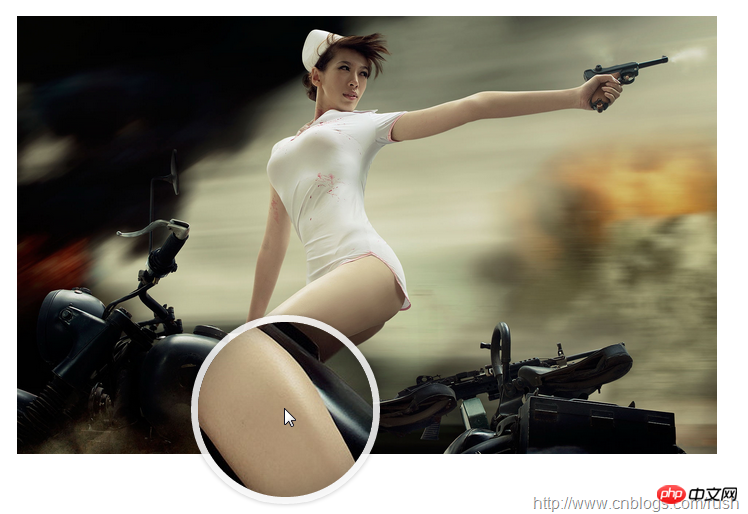
实现原理
首先,我们讲解一下放大镜效果的实现方式:
方法一:准备一张高像素的大图,当鼠标放到原图上,加载显示大图的对应位置。
方法二:对原图片进行放大,也就是调整原图的长和宽。
上面我们介绍了通过两种方式实现放大镜效果,接下来,我们将以上的两种方式应用到我们的jQuery插件中。
首先,我们需要一个img元素显示原图对象,还需要一个容器作为显示框;显示框里面存放大图对象。当鼠标移动到原图上时,通过对大图进行绝对定位来显示对应的部位,实现类似放大镜的效果。
接下来,让我们定义Index.html页面,具体实现如下:
  jQuery Image Zoom Demo


@@##@@
上面,我们定义了small对象用于显示原图,而large对象作为一个显示框用来显示大图的对应位置。
mousemove事件
接下来,我们通过jQuery插件形式来实现放大镜效果,当鼠标移动到small对象上方时,就会在large对象中显示大图的对应位置,这就涉及到mousemove事件了,所以,我们需要实现mousemove事件的监听方法(如何定义jQuery插件可以参考《自定义jQuery插件Step by Step》)。
现在,让我们实现jquery.imagezoom.js插件吧!
(function ($) {

    $.fn.imageZoom = function (options) {

    // The native width and height of the image.
    var native_width = 0,
        native_height = 0,
        current_width = 0,
        current_height = 0,
        $small = $(".small"),
        $large = $(".large");

    $(".magnify").mousemove(function (e) {
        /* Act on the event */
        if (!native_width && !native_height) {
            var image_object = new Image();
            image_object.src = $small.attr('src');

            // Gets the image native height and width.
            native_height = image_object.height;
            native_width = image_object.width;

            // Gets the image current height and width.
            current_height = $small.height();
            current_width = $small.width();

        } else {

            // Gets .maginfy offset coordinates.
            var magnify_offset = $(this).offset(),

                // Gets coordinates within .maginfy.
                mx = e.pageX - magnify_offset.left,
                my = e.pageY - magnify_offset.top;

            // Checks the mouse within .maginfy or not.
            if (mx < $(this).width() && my < $(this).height() && mx > 0 && my > 0) {
                $large.fadeIn(100);
            } else {
                $large.fadeOut(100);
            } if ($large.is(":visible")) {
                /* Gets the large image coordinate by ratio
                   small.x / small.width = large.x / large.width
                   small.y / small.height = large.y / large.height
                   then we need to keep pointer in the centre,
                   so deduct the half of .large width and height.
                */
                var rx = Math.round(mx / $small.width() * native_width - $large.width() / 2) * -1,
                    ry = Math.round(my / $small.height() * native_height - $large.height() / 2) * -1,
                    bgp = rx + "px " + ry + "px",
                    px = mx - $large.width() / 2,
                    py = my - $large.height() / 2;
                $large.css({
                    left: px,
                    top: py,
                    backgroundPosition: bgp
                });
            }

        }
    });
});
上面,我实现了mousemove事件的监听方法,当鼠标移动到magnify对象中,我们需要获取当前鼠标的相对坐标位置,下面我们通过图片讲解如何获取鼠标的相对坐标位置。
相对坐标
图1鼠标相对坐标位置
当鼠标移动到magnify对象中,我们需要获取鼠标在magnify中的相对坐标位置,这里我们把相对坐标定义为(mx,my),通过上图我们知道相对坐标等于(pageX - offsetLeft, pageY - offsetTop)。
现在,我们已经获取鼠标在magnify对象中的坐标值,接下来,需要获取对应大图的相应坐标,这里我们把大图的对应坐标定义为(rx,ry),我们可以通过比例关系获取(rx,ry)的值。
mx / small.width (原图的宽)= rx / native_width(大图的宽)
my / small.height (原图的长)= ry / native_height(大图的长)
通过上面的比例关系,我们知道大图的坐标(rx,ry)等于(mx/small.width*native_width, my/small.height*native_height)。
通过上述的公式,我们可以获取大图对应坐标位置,当鼠标移动到magnify对象中就显示对应位置的大图部位,接下来我们需要实现大图的加载实现了。
background-position属性
在实现大图加载显示之前,首先介绍CSS中背景定位background-position的知识。
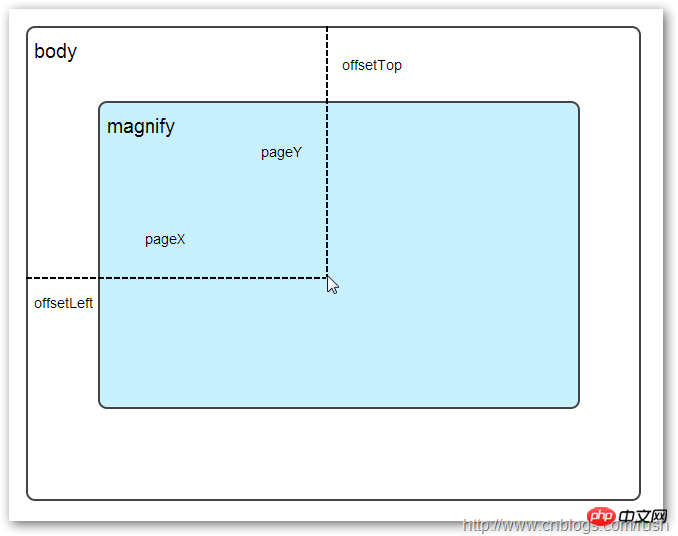
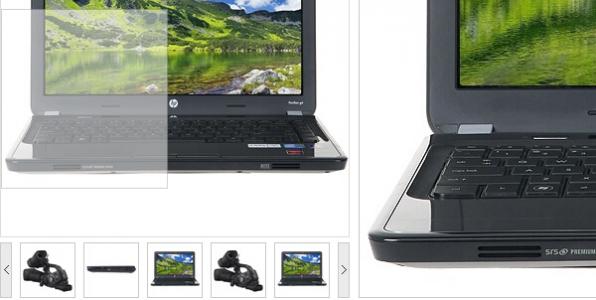
图2 CSS background-position
上面,有一个100x100像素的图片它由四种颜色组成,而且每种颜色占50 x50像素,接下来,我们将通过修改该图片CSS的background-position属性值来显示该图片的不同位置。
我们看到在大正方形下有两行小正方形,它们显示的颜色位置都不相同,这里我们通过修改每个p元素CSS的background-position属性值实现的。
例如:第一行的蓝色方形,我们设置CSS的background-position属性为:0px -50px;这相当于原图往上移动50px,第一行的其他方形也通过左右和上下移动实现的。
但第二行的方形就显得更加奇怪了,因为它们都由四种颜色组成,而且颜色的位置都不一样,这究竟是怎样实现的呢?
例如:第二行的第一个方形,我们设置CSS的background-position属性为:25px 25px;这相当于原图向下和向右移动了25px,由于image wrap的作用它会填充剩余位置的颜色。
现在,我们已经了解到了CSS的background-position属性的作用,所以我们通过修改large对象的background-position属性来显示对应的图像部分,具体实现如下:
$large.css({
    left: px,
    top: py,
    backgroundPosition: bgp
});
上面,我们通过加载大图的方式来实现放大镜效果,接下来,我们将介绍通过调整原图的长和宽来实现放大镜效果。
mousewheel事件
前面,我们通过mousemove事件来放大图片,这里我们将通过鼠标的滚轮事件实现图片放大效果。
由于,不同的浏览器有不同的滚轮事件。主要是有三种:onmousewheel(IE 6/7/8)、mousewheel(IE9,Chrome,Safari和Opera)和DOMMouseScroll(只有Firefox支持),关于这三个事件这里不做详细的介绍了。
由于不同浏览器之间存在着差异,为了实现浏览器之间的兼容,所以,我们需要监听以上三种滚轮事件(onmousewheel,mousewheel和DOMMouseScroll),具体实现如下:
$(".magnify").bind('DOMMouseScroll mousewheel onmousewheel', function(e) {
});
上面,我们实现了兼容不同浏览器的滚轮事件监听方法,接下来,判断滚轮向上或向下也要考虑不同浏览器的兼容性,主流的览器(IE、Opera、Safari、Firefox、Chrome)中Firefox 使用detail,其余四类使用wheelDelta;两者只在取值上不一致,代表含义一致,detail与wheelDelta只各取两个值,detail只取±3,wheelDelta只取±120,其中正数表示为向上,负数表示向下。
由于detail和wheelDelta都有两个值表示向上或向下滚动,所以不同浏览器间可以通过以下方式实现兼容,具体实现如下:
$(".magnify").bind('DOMMouseScroll mousewheel onmousewheel', function(e) {

    // cross-browser wheel delta
    var e = window.event || e; // old IE support.
    var delta = Math.max(-1, Math.min(1, (e.wheelDelta || -e.detail)));
});
上面,我们已经处理了不同浏览器滚轮监听方法,当用户滚动滚轮时需要动态地修改原图的尺寸,这里我们定义缩放比scaling为0.3,也就是说每当用户滚动一下滚轮原图就按0.3的比例进行缩放,具体实现如下:
// Gets the image scaling height and width.
native_height += (native_height * scaling * delta);
native_width += (native_width * scaling * delta);

// Update backgroud image size.
$large.css('background-size', native_width + "px " + native_height + "px");
现在,我们已经实现了通过滚轮对图片进行缩放查看的效果,完整的实现如下:
(function($) {

    $.fn.imageZoom = function(options) {

        // The native width and height of the image.
        var defaults = {
            scaling: 0.3
        };

        // Combines object defaults and options.
        options = $.extend(defaults, options),
            native_width = 0,
            native_height = 0,
            current_width = 0,
            current_height = 0,
            $small = $(".small"),
            $large = $(".large");

        $(".magnify").mousemove(function(e) {
            /* Act on the event */
            if (!native_width && !native_height) {
                var image_object = new Image();
                image_object.src = $small.attr('src');

                // Gets the image native height and width.
                native_height = image_object.height;
                native_width = image_object.width;

                // Gets the image current height and width.
                current_height = $small.height();
                current_width = $small.width();

            } else {

                // Gets .maginfy offset coordinates.
                var magnify_offset = $(this).offset(),

                // Gets coordinates within .maginfy.
                    mx = e.pageX - magnify_offset.left,
                    my = e.pageY - magnify_offset.top;

                // Checks the mouse within .maginfy or not.
                if (mx < $(this).width() && my < $(this).height() && mx > 0 && my > 0) {
                    $large.fadeIn(100);
                } else {
                    $large.fadeOut(100);
                }
                if ($large.is(":visible")) {
                    /* Gets the large image coordinate by ratio
                    small.x / small.width = large.x / large.width
                    small.y / small.height = large.y / large.height
                    then we need to keep pointer in the centre,
                    so deduct the half of .large width and height.
                    */
                    var rx = Math.round(mx / $small.width() * native_width - $large.width() / 2) * -1,
                        ry = Math.round(my / $small.height() * native_height - $large.height() / 2) * -1,
                        bgp = rx + "px " + ry + "px",
                        px = mx - $large.width() / 2,
                        py = my - $large.height() / 2;
                    $large.css({
                        left: px,
                        top: py,
                        backgroundPosition: bgp
                    });
                }

            }
        });

        $(".magnify").bind('DOMMouseScroll mousewheel onmousewheel', function(e) {
            var image_object = new Image();
            image_object.src = $large.attr('src');


            // cross-browser wheel delta
            e = window.event || e; // old IE support.
            var delta = Math.max(-1, Math.min(1, (e.wheelDelta || -e.detail)));

            // Gets the image scaling height and width.
            native_height += (native_height * defaults.scaling * delta);
            native_width += (native_width * defaults.scaling * delta);

            // The image can't smaller than the original.
            if (native_height < current_height) {
                native_height = current_height;
            }

            if (native_width < current_width) {
                native_width = current_width;
            }

            // console.log("native_height: " + native_height + " native_width: " + native_width);

            // Gets .maginfy offset coordinates.
            var magnify_offset = $(this).offset(),
                mx = e.pageX - magnify_offset.left,
                my = e.pageY - magnify_offset.top;

            // Update backgroud image size.
            $large.css('background-size', native_width + "px " + native_height + "px");

            /* Gets the large image coordinate by ratio
            small.x / small.width = large.x / large.width
            small.y / small.height = large.y / large.height
            then we need to keep pointer in the centre,
            so deduct the half of .large width and height.
            */
            var rx = Math.round(mx / $small.width() * native_width - $large.width() / 2) * -1,
                ry = Math.round(my / $small.height() * native_height - $large.height() / 2) * -1,
                bgp = rx + "px " + ry + "px",
                px = mx - $large.width() / 2,
                py = my - $large.height() / 2;

            $large.css({
                left: px,
                top: py,
                backgroundPosition: bgp
            });
        });
    };
})(jQuery);
上面,我们实现了放大镜效果,当我们鼠标停留在图片上方会自动放大图片的相应部位,当然我们可以通过滚轮调整放大的比例。