



答案:实现JS拖放需监听mousedown、mousemove、mouseup及touch事件,通过事件坐标计算元素位置,结合offsetLeft、clientX等属性更新样式;为提升性能,应使用requestAnimationFrame避免频繁DOM操作,并采用passive监听器优化滚动;拖动时通过设置高z-index确保元素置顶,mouseup后恢复;限制移动范围可用Math.max与Math.min约束坐标;触摸设备需用touchstart、touchmove、touchend替代鼠标事件,并调用preventDefault防止页面滚动;实现拖放目标检测可借助getBoundingClientRect进行区域碰撞判断,满足条件后执行相应逻辑,从而完成复杂拖放交互。
JS实现拖放功能,核心在于监听一系列的鼠标事件,并巧妙地利用这些事件来更新元素的位置。简单来说,就是mousedown时开始拖动,mousemove时移动元素,mouseup时结束拖动。
实现JS拖放功能,需要理解并利用一系列的事件监听和属性设置。
如何优化拖放过程中的性能?
拖放过程频繁触发mousemove事件,性能优化至关重要。一种方法是使用
requestAnimationFrame来控制更新频率。不要在mousemove事件处理函数中直接操作DOM,而是将需要更新的数据保存下来,然后在
requestAnimationFrame的回调函数中一次性更新DOM。
let target = null;
let offsetX, offsetY;

function onMouseDown(e) {
  target = e.target;
  offsetX = e.clientX - target.offsetLeft;
  offsetY = e.clientY - target.offsetTop;
  document.addEventListener('mousemove', onMouseMove);
  document.addEventListener('mouseup', onMouseUp);
}

function onMouseMove(e) {
  if (!target) return;
  // 存储位置信息,不直接操作DOM
  target.newX = e.clientX - offsetX;
  target.newY = e.clientY - offsetY;
  requestAnimationFrame(updatePosition);
}

function updatePosition() {
  if (!target) return;
  target.style.left = target.newX + 'px';
  target.style.top = target.newY + 'px';
}

function onMouseUp() {
  document.removeEventListener('mousemove', onMouseMove);
  document.removeEventListener('mouseup', onMouseUp);
  target = null;
}

const draggableElement = document.getElementById('draggable');
draggableElement.addEventListener('mousedown', onMouseDown);
此外,考虑使用
passive事件监听器来提高滚动性能。对于mousemove和touchmove事件,如果你的事件处理函数不调用
preventDefault(),那么应该将
passive设置为true。
document.addEventListener('mousemove', onMouseMove, { passive: true });拖放过程中如何处理元素层级问题?
在拖放过程中,可能需要将拖动元素置于最顶层,避免被其他元素遮挡。可以通过设置
z-index属性来实现。在开始拖动时,将拖动元素的
z-index设置为一个较大的值,结束拖动时恢复其原始值或移除该属性。
let originalZIndex;

function onMouseDown(e) {
  target = e.target;
  originalZIndex = target.style.zIndex; // 保存原始z-index
  target.style.zIndex = 1000; // 设置较高的z-index
  // ... 其他拖动逻辑
}

function onMouseUp() {
  // ... 其他结束拖动逻辑
  target.style.zIndex = originalZIndex; // 恢复原始z-index
  // 或者移除z-index属性
  // target.style.removeProperty('z-index');
  target = null;
}
如果元素最初没有设置
z-index,则需要保存
undefined,并在mouseup时使用
removeProperty移除。
如何限制拖放元素的移动范围?
有时需要限制拖放元素只能在特定区域内移动。这可以通过在mousemove事件处理函数中检查元素的新位置是否超出范围来实现。如果超出范围,则将元素的位置设置为边界值。
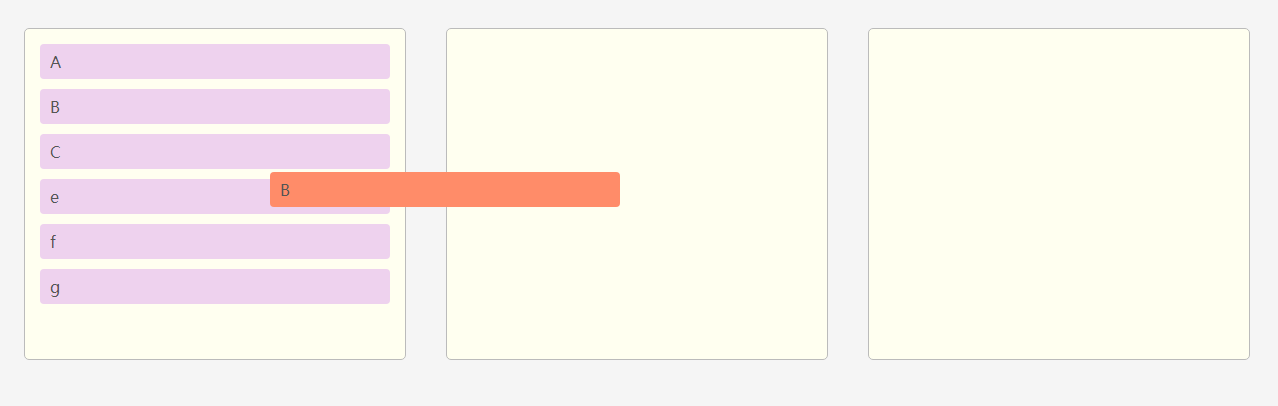
function onMouseMove(e) {
  if (!target) return;

  let newX = e.clientX - offsetX;
  let newY = e.clientY - offsetY;

  // 限制移动范围 (假设限制在屏幕内)
  const maxX = window.innerWidth - target.offsetWidth;
  const maxY = window.innerHeight - target.offsetHeight;

  newX = Math.max(0, Math.min(newX, maxX)); // 限制在0到maxX之间
  newY = Math.max(0, Math.min(newY, maxY)); // 限制在0到maxY之间

  target.style.left = newX + 'px';
  target.style.top = newY + 'px';
}Math.max和
Math.min的巧妙使用,能够简洁地实现范围限制。
拖放功能如何兼容触摸设备?
触摸设备没有鼠标事件,需要使用触摸事件来模拟拖放。触摸事件包括
touchstart、
touchmove和
touchend。基本思路与鼠标事件类似,但需要注意以下几点:
- 使用
touchstart
代替mousedown
,touchmove
代替mousemove
,touchend
代替mouseup
。 - 触摸事件对象包含一个
touches
列表,其中包含了触摸点的信息。通常使用touches[0]
来获取第一个触摸点的信息。 - 需要阻止默认的滚动行为,避免拖动时页面滚动。
function onTouchStart(e) {
  e.preventDefault(); // 阻止滚动
  target = e.target;
  offsetX = e.touches[0].clientX - target.offsetLeft;
  offsetY = e.touches[0].clientY - target.offsetTop;
  document.addEventListener('touchmove', onTouchMove);
  document.addEventListener('touchend', onTouchEnd);
}

function onTouchMove(e) {
  e.preventDefault(); // 阻止滚动
  if (!target) return;
  target.style.left = (e.touches[0].clientX - offsetX) + 'px';
  target.style.top = (e.touches[0].clientY - offsetY) + 'px';
}

function onTouchEnd() {
  document.removeEventListener('touchmove', onTouchMove);
  document.removeEventListener('touchend', onTouchEnd);
  target = null;
}

const draggableElement = document.getElementById('draggable');
draggableElement.addEventListener('touchstart', onTouchStart);e.preventDefault()的调用是至关重要的,它可以阻止页面滚动,提供更流畅的拖放体验。
如何实现更复杂的拖放效果,例如拖放到指定区域?
要实现更复杂的拖放效果,例如将元素拖放到特定的目标区域,需要在
mouseup或
touchend事件中检测元素是否位于目标区域内。如果位于目标区域内,则执行相应的操作,例如改变元素的位置、更新数据等。
function onMouseUp() {
  document.removeEventListener('mousemove', onMouseMove);
  document.removeEventListener('mouseup', onMouseUp);

  if (target) {
    const dropTarget = document.getElementById('drop-target');
    const targetRect = target.getBoundingClientRect();
    const dropTargetRect = dropTarget.getBoundingClientRect();

    // 检查是否位于目标区域内
    if (targetRect.left > dropTargetRect.left &&
        targetRect.right < dropTargetRect.right &&
        targetRect.top > dropTargetRect.top &&
        targetRect.bottom < dropTargetRect.bottom) {
      // 位于目标区域内,执行相应操作
      target.style.left = dropTargetRect.left + 'px';
      target.style.top = dropTargetRect.top + 'px';
      console.log('Dropped inside the target area!');
    }
  }

  target = null;
}getBoundingClientRect()方法可以获取元素相对于视口的位置和大小,方便进行碰撞检测。
总而言之,实现JS拖放功能需要对鼠标事件和触摸事件有深入的理解,并结合性能优化技巧,才能提供良好的用户体验。




